

How to back up your entire Vimeo library
Keeping videos on a single platform, any platform, is a risk. This guide covers why a backup matters and how to create one without drowning in manual work.
Make your backup copy now, then keep reading for the why.
Why back up Vimeo specifically?
Vimeo is a well-run company, but that's not what backups protect you against. Backups protect you against:
- Accidental deletions (yours or a collaborator's)
- Billing issues that temporarily suspend your account
- Policy violations on automated scans (false positives happen)
- Plan changes that restrict what your account can do
- Leaving Vimeo for a competing service in the future
- The company pivoting or shutting down a plan tier you rely on
None of this is likely on any given day. But the cost of being wrong is losing years of work, and the cost of being right is a few gigabytes on a drive somewhere.
The 3-2-1 rule for video backups
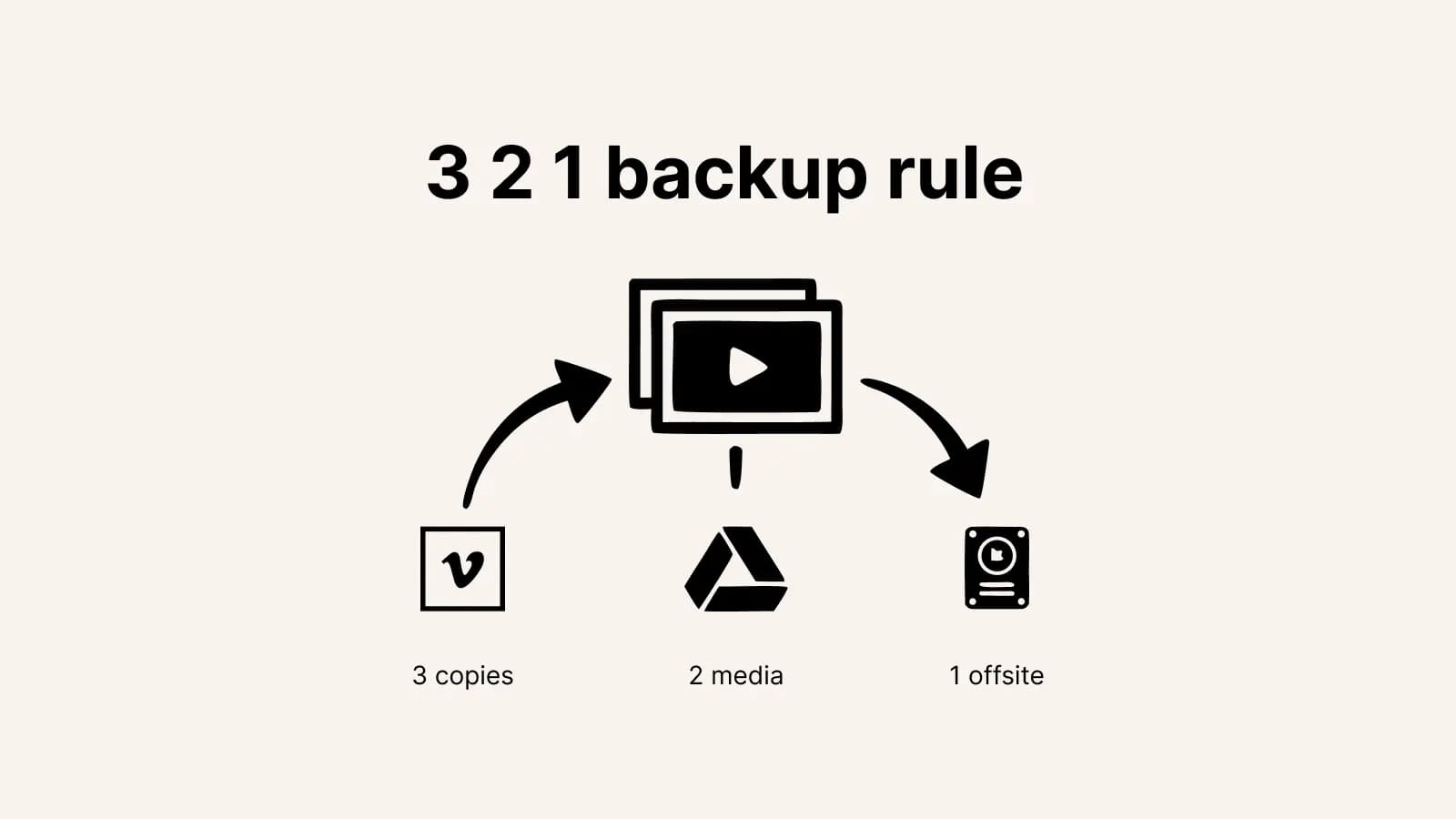
Borrowed from IT best practices: keep at least 3 copies of your data, on 2 different media types, with 1 copy off-site. For video creators, this usually means:
- Copy 1: The master on Vimeo (your working copy)
- Copy 2: A backup in Google Drive or another cloud
- Copy 3: A local external hard drive or NAS
The "off-site" copy protects against fire, theft, or hardware failure at home. For most people, a cloud backup counts as off-site.
Try it now
Make copy 2 and copy 3 in one afternoon
Save your Vimeo library to your computer, to Google Drive, or both. Try the first 10 files or 3 GB free, whichever comes first.
Creating your first backup
You don't need to download each video by hand. A tool that talks to the Vimeo API can copy the whole library in one go, either to a folder on your computer or straight into Google Drive.
- Make sure you're on a Vimeo plan that allows API downloads.
- Generate a Vimeo personal access token with the right scopes.
- Open the download tool for a copy on your computer or external drive, or the Google Drive tool for a copy in the cloud, and sign in.
- Paste your Vimeo token.
- Select every video in your library, pick a destination folder, and start.
This makes a one-time copy of your library as it is today. It doesn't run on a schedule. To pick up videos you upload later, run it again whenever you like: videos you already copied are marked as done and don't count against your pack a second time.
How much storage do you need?
Open your Vimeo account and check the total storage used. Common range: a few GB for occasional uploaders, 100-500 GB for active creators, 1-5 TB for production companies, 5-20 TB for large teams or historical archives.
Google Drive gives 15 GB free with any Gmail account. Google Workspace plans go up from there. Dropbox, OneDrive, and Box offer similar tiers. For anything over a few hundred GB, pay-as-you-go object storage (Backblaze B2, Wasabi, S3) is the cheapest long-term option, though setup is more technical.