

Leaving Vimeo? How to keep every video
If you're canceling Vimeo, your videos don't disappear the moment you hit 'Cancel', but they will when your billing period ends. This guide walks you through exporting your entire library so nothing gets lost in the transition.
Short on time? Export your whole library before you cancel.
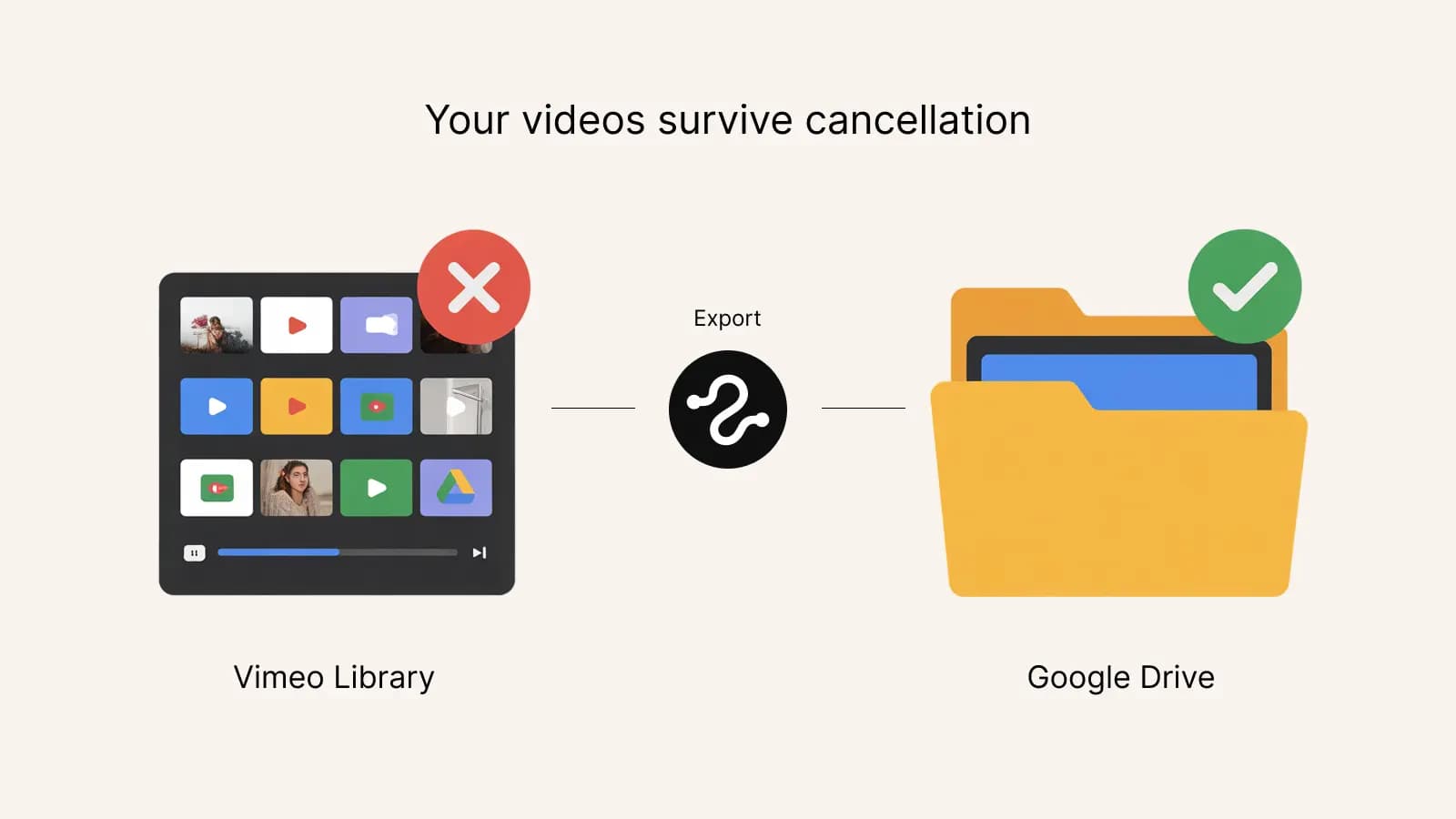
What happens to your videos when you cancel?
Canceling doesn't cut you off straight away. According to Vimeo's help center, you keep your paid features until the end of the billing period you already paid for. After that, the account drops to the Free plan, and that is where it bites:
- Free has a 1 GB storage cap. Everything above it is restricted, newest uploads first.
- Restricted videos can't be played, edited, or downloaded. Their links and embeds stop working.
- They aren't deleted, and they unlock if you upgrade to a plan whose storage covers them. But deleting a restricted video is permanent: it skips Recently deleted.
- The Free plan doesn't allow downloads through the API, so no bulk export tool can reach your library after that date.
For the full picture, see what happens to your videos when you cancel Vimeo.
Don't cancel yet: export first
You can cancel before exporting, since access lasts until the end of the billing period. But the export has to finish, and you want time to check the files, before that date. Leaving it to the last day is how videos get lost. The safe sequence:
- Make sure you're on a plan that allows API downloads (Starter or above).
- Export your entire library to a safe destination.
- Verify the exported files play and aren't corrupted.
- Then cancel Vimeo.
Where should the videos go?
The best destination depends on what you'll do with them next:
Your computer or an external drive
Cheapest for pure archival, and nothing new to pay for each month. Use this2that's bulk downloader to save the whole library into a folder on your computer, sorted into the same folders you had on Vimeo. Copy that folder to an external drive and put it on a shelf.
Google Drive or Google Workspace
Fast, cheap, works with any Google account. Great if you need to share videos with collaborators or keep working with them. Use this2that's Vimeo to Google Drive tool to move everything in one click.
Amazon S3, Backblaze B2, or other object storage
Good for cold storage at scale. Cheap per-GB but requires some technical setup. If you have terabytes of video and don't need to watch them often, object storage is the cheapest option long-term.
Try it now
Don't wait until the last day
Export before your billing period ends so you can verify everything landed safely. The first 10 files or 3 GB are free, whichever comes first.
Do it manually or use a migration tool?
Manual approach: log into Vimeo, open each video, click download, save to disk, upload to destination. For 10 videos, fine. For 1,000 videos, that's a full week of clicking.
Migration tool approach: connect once, select all, start transfer. A few minutes of setup, then it runs in the background. For most people, the cost of the tool is less than an hour of their time, not to mention the hours saved.
One-click Vimeo export with this2that
The same few steps work for either destination:
- Generate a Vimeo personal access token (2 minutes)
- Open the download tool or the Google Drive tool and sign in
- Paste your Vimeo token
- Select all your videos and start
- Wait for it to finish (minutes to hours depending on size)
- Open a few of the files to check they play
- Cancel Vimeo with confidence
The free trial lets you test the flow on 10 files or 3 GB, whichever comes first. For a full library, buy a pack that fits your total size. Pay once and you own the export.