

Every way to move Dropbox to Google Drive (2026)
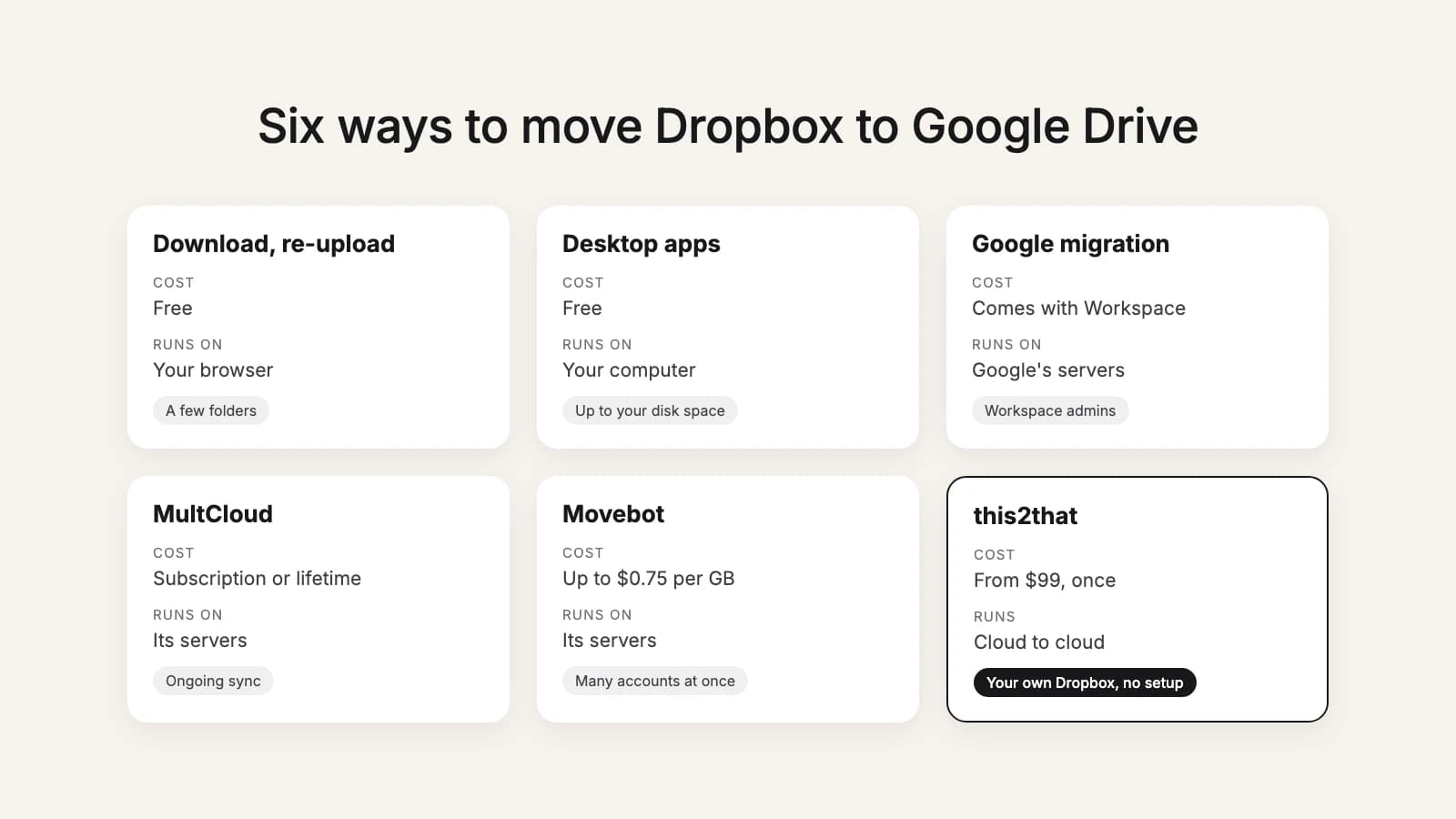
There's no "send to Google Drive" button in Dropbox. Depending on how much you store and who you are, the right way out is anything from a free download to Google's own admin tool. We make one of the options, so here's the whole field, including when another one is the better pick. Prices and features of other tools come from their own pages, as of October 2026.
| Option | Cost | Who can use it | Runs on | Best for |
|---|---|---|---|---|
| Download and re-upload | Free | Anyone | Your browser, twice over your connection | A few folders |
| Dropbox and Drive desktop apps | Free | Anyone with the disk space | Your computer, which stays on | Up to what your disk can hold |
| Google Data Migration service | Comes with Workspace | Workspace super admin plus a Dropbox team admin | Google's servers | A whole company on a Dropbox business plan |
| MultCloud | Free 5 GB a month, then from $19.99 a month or $119 a year | Anyone | MultCloud's servers | Ongoing sync between several clouds |
| Movebot | Up to $0.75 per GB moved | Anyone, card needed before a transfer | Movebot's servers | IT teams and MSPs moving many accounts and mailboxes |
| this2that | The first 5 GB or 200 files free, then from $99 once | Anyone | Cloud to cloud | One person or team moving their own Dropbox, without setup |
One limit applies to all six: Google Drive accepts 750 GB per account in 24 hours. No tool gets around it, so a 2 TB Dropbox takes at least three days to arrive. The details are in how long it takes.
1. Download from Dropbox, upload to Google Drive
Free and needs nothing installed. Dropbox zips a folder for download only if it's under 250 GB and holds fewer than 10,000 files, and everything travels over your own connection twice. Good for a handful of folders, painful beyond that. Steps in our guide.
2. The two desktop apps
Install Dropbox and Google Drive for desktop, make your Dropbox folders available offline, and copy them into your Google Drive folder. Free, and your folders come across as they are. The catch is the computer: it needs free disk space for everything you move, and it has to stay on and online until the upload finishes at your upload speed.
3. Google's Data Migration service
Generally available since January 2026, Google's own tool copies a Dropbox business account into Workspace: personal folders to each person's My Drive, team folders to shared drives, with sharing permissions mapped. It needs a Workspace super admin and a Dropbox team admin, handles up to 150 folders per run, and leaves Paper docs and older file versions behind (Google's list). If that's you, it's the strongest option on this page, and Google lists no separate price for it. It's not available to personal Dropbox accounts or to anyone who isn't the admin.
4. MultCloud
A web service that connects many cloud storage accounts and copies or syncs between them. Its pricing page lists a free plan with 5 GB of data traffic a month, 100 GB a month for $19.99, 1,200 GB a year for $59.99, unlimited for $119 a year, and a lifetime unlimited plan for $249. A good fit if you want ongoing sync between several clouds, not just a one-time move. It's a subscription for most plans, so remember to cancel once you're done.
5. Movebot
A pay-as-you-go migration platform, with a separate plan for managed service providers, covering files and mailboxes across many providers. Its pricing is pay as you go, at no more than $0.75 per GB moved, with free scanning and a card required before a transfer. At that rate 500 GB can cost up to $375. The right tool if you're moving dozens of accounts and email at once.
6. this2that
Ours. You sign in, connect Dropbox with read-only access, tick the folders and files you want, open the Google Drive folder or shared drive they should go to, and press the arrow. It runs cloud to cloud, so you can close the tab. The first 5 GB or 200 files are free; after that a one-time pack covers the size you move, from $99 for 500 GB to $499 for 7 TB, and packs stack. It pauses at Google's daily cap and carries on by itself, gives you a report of every file, lets you retry failures, and for 30 days runs catch-up passes that copy only what changed in Dropbox since.
When not to use us
- A few gigabytes: download and re-upload, or use the free allowance.
- You're the Workspace admin for a company on Dropbox business: Google's Data Migration service carries permissions, with no separate price listed.
- You want two clouds kept in sync, not a move: MultCloud.
- Dozens of accounts plus mailboxes: Movebot.
For everyone else moving their own Dropbox, or a team folder, without tying up a computer for days, that's what this2that is for. Before you pick, check what doesn't move with any method.
Try it on your own Dropbox: the first 5 GB or 200 files are free.
See how it works→