

What doesn't move from Dropbox to Google Drive, and what to do about it
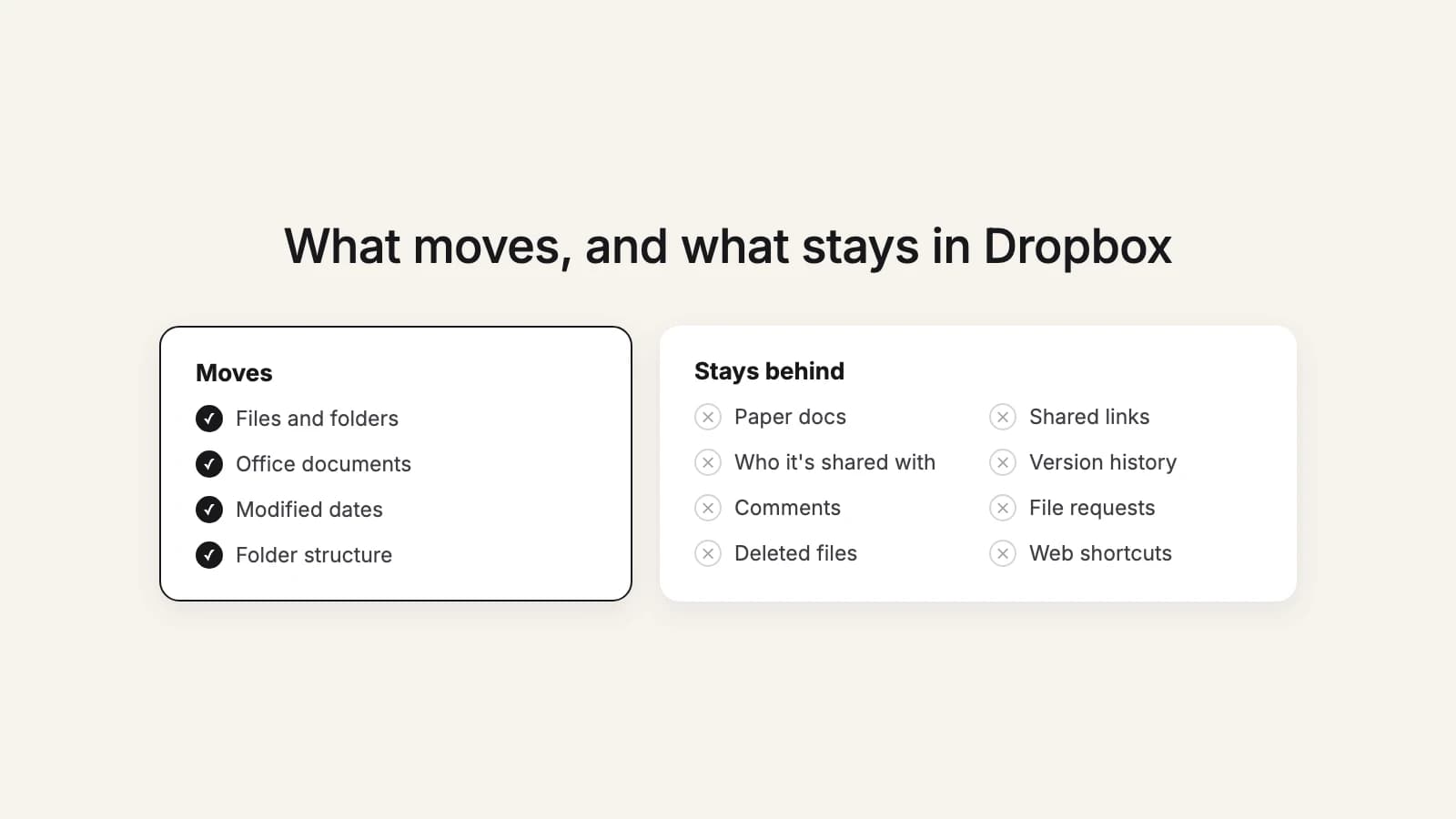
Your files move. Almost everything Dropbox keeps around your files doesn't, whichever tool you use, because it only means something inside Dropbox. Knowing the list before you start turns "where did that go?" into a short to-do list.
| What | Moves? | What to do |
|---|---|---|
| Files and folders | Yes | Nothing. Folder structure comes across; this2that and the desktop apps also keep each file's modified date. |
| Word, Excel, PowerPoint files | Yes, as they are | Open them in Google Docs, Sheets or Slides, or convert the ones you edit often. |
| Dropbox Paper docs | No | Export each one as .docx, .md or .pdf and upload it. |
| Web shortcuts (.web) | Not as links | Keep the addresses you need as bookmarks or a list in a Google Doc. |
| Who a folder is shared with | No | Share again in Google Drive, or use a shared drive whose members cover it. |
| Shared links | No | Send new Google Drive links and update links in documents and websites. |
| Version history | Latest version only | Restore any older version you need in Dropbox before you move. |
| Comments | No | Copy any comment that matters into the file or a note. |
| File requests | No | Rebuild with a Google Form that has a file upload question. |
| Deleted files | No | Restore what you still need in Dropbox first. |
Files, folders and Office documents
These are what a migration is for, and they arrive as they are: a PDF stays a PDF, a .docx stays a .docx. this2that also keeps each file's modified date, so sorting by date in Google Drive still makes sense. Google's own admin migration does the same: files import in their existing format, so a Word file stays a Word file. Either way, Google Docs, Sheets and Slides open Office files directly.
Dropbox Paper docs
Paper docs live inside Dropbox as cloud documents, not as files that can be downloaded, so no migration tool moves them as they are. Google's migration skips them; this2that lists each one in its report as needing attention, so you have the list. Dropbox lets you export a Paper doc as .docx, .md or .pdf. Two things from Dropbox's own notes: on the current version of Paper you export one doc at a time, and its .docx export is made for Microsoft Word, so check the result if you open it in Google Docs. For an archive copy, PDF is the safest choice.
Web shortcuts
A .web shortcut is a saved web address that opens in your browser from Dropbox. Outside Dropbox it's not a link anymore, and Google Drive's own shortcuts point to Drive files and folders, not to web pages. If you used them, collect the addresses in a Google Doc or your bookmarks.
Sharing and shared links
Who a folder is shared with, and every shared link, belong to Dropbox. A Dropbox link opens the file in Dropbox, so it works only while the file and the account are still there. Plan for new Google Drive links: re-share folders with the same people, and update links in documents, email signatures and your website. For a team, a shared drive saves most of this work, because its members see everything in it (see team folders into shared drives). Google's admin migration is the exception: for Dropbox business accounts it maps sharing permissions across.
Version history
Every method moves the current version of each file. Older versions stay in Dropbox, which keeps them for 30, 180 or 365 days depending on your plan. If you need an older version, restore it in Dropbox before you move. In Google Drive, history starts again: Drive may delete a previous version after 30 days or 100 newer versions unless you mark it Keep forever.
Comments and file requests
Comments on Dropbox files stay in Dropbox. Copy anything important into the file or a note. Dropbox file requests, the links people use to send you files, don't carry over either. The closest Google equivalent is a Google Form with a file upload question; note that people need to sign in to a Google account to answer it.
Deleted files
Files in Dropbox's deleted files list aren't part of any move. Dropbox lets you restore them for 30, 180 or 365 days, again depending on the plan. Restore what you still need first, then move.
How this2that tells you
Before anything is copied, the move is counted, and anything that can't come across, such as Paper docs or a file bigger than Google Drive accepts, is listed with the reason. The report (CSV) of each move has a row for every file: moved, skipped or failed. Failed files can be retried, and for 30 days a catch-up pass copies files that are new or changed in Dropbox since. The full walk-through is in our guide.
Rather skip the manual steps? this2that moves Dropbox into Google Drive, cloud to cloud. The first 5 GB or 200 files are free.
See how it works→