

The Dropbox to Google Drive switch-over checklist
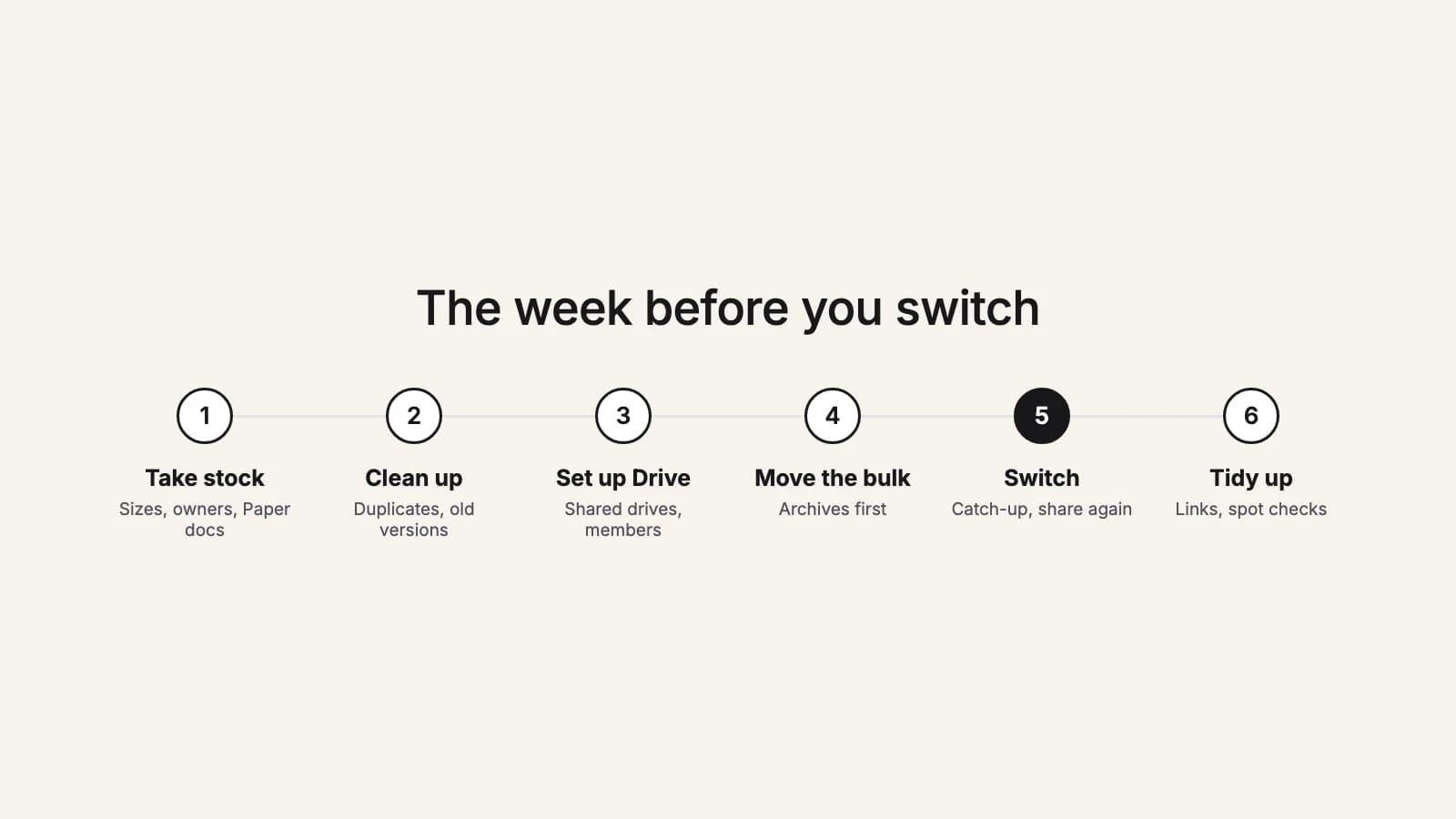
Copying the files is the easy part. What makes a switch from Dropbox to Google Drive go smoothly is the week around it: knowing what you have, moving the big stuff early, and picking one clear day when Google Drive becomes the place where work is saved. Here's that week, day by day, for a person or a small team.
1. A week before
Take stock
- Note how much you store in Dropbox and check that much is free in Google Drive.
- List the folders that matter, who uses each one, and who they're shared with, inside and outside the company.
- Find your Paper docs and web shortcuts: they need exporting by hand.
- Decide where each folder lands: My Drive for personal files, a shared drive for each team folder.
2. Six days before
Clean up
- Delete duplicates and old exports nobody needs, so you don't pay to move them.
- Restore anything from Dropbox's deleted files or version history you still need: neither moves.
- Tidy the folder layout now, while it's in one place.
3. Five days before
Set up Google Drive
- Create the shared drives and add members with their roles, ideally as Google groups.
- Create the destination folders in My Drive.
- Pick a cutover day and tell everyone: from then on, new work is saved in Google Drive.
4. Four to two days before
Move the bulk
- Start with folders that rarely change, such as archives and finished projects.
- Keep working in Dropbox in the meantime; changes get picked up at the end.
- Allow a day for every 750 GB, Google Drive's daily upload limit per account.
- Read the report of each move and retry anything that failed.
5. Cutover day
Switch
- Ask everyone to stop saving to Dropbox.
- Run a final catch-up pass to copy what changed since the bulk move.
- Export Paper docs and upload them.
- Re-share folders and send new Google Drive links.
6. The week after
Tidy up
- Replace Dropbox links in documents, email signatures, bookmarks and your website.
- Spot-check folders people know well and fix anything that looks off.
- Keep Dropbox until nobody has asked for a missing file for a while, then cancel.
Why move the bulk before cutover day
Google Drive accepts 750 GB per account in 24 hours, so a large Dropbox can't move in an afternoon. Moving most of it while people keep working, then copying only what changed, keeps the actual switch to one short step. The numbers for different sizes are in how long it takes.
Why keep Dropbox for a while
Older versions and deleted files stay in Dropbox only, for 30, 180 or 365 days depending on your plan. Until you're sure nothing is missing, that's your safety net. Cancel once the questions stop.
Doing it with this2that
Each step of the checklist maps onto the tool. Tick folders and files on the left, open the Google Drive folder or shared drive on the right, and press the arrow, as many times as you like over the week. Each move counts its files, starts by itself, and keeps a report. On cutover day, "Check for changes" on each move copies only what's new or changed in Dropbox since, for 30 days after the move finished. Files deleted in Dropbox stay in Google Drive. Steps for every method are in our guide, and the items that need exporting by hand are in what doesn't move.
Rather skip the manual steps? this2that moves Dropbox into Google Drive, cloud to cloud. The first 5 GB or 200 files are free.
See how it works→