

Moving a Dropbox team folder into a Google shared drive
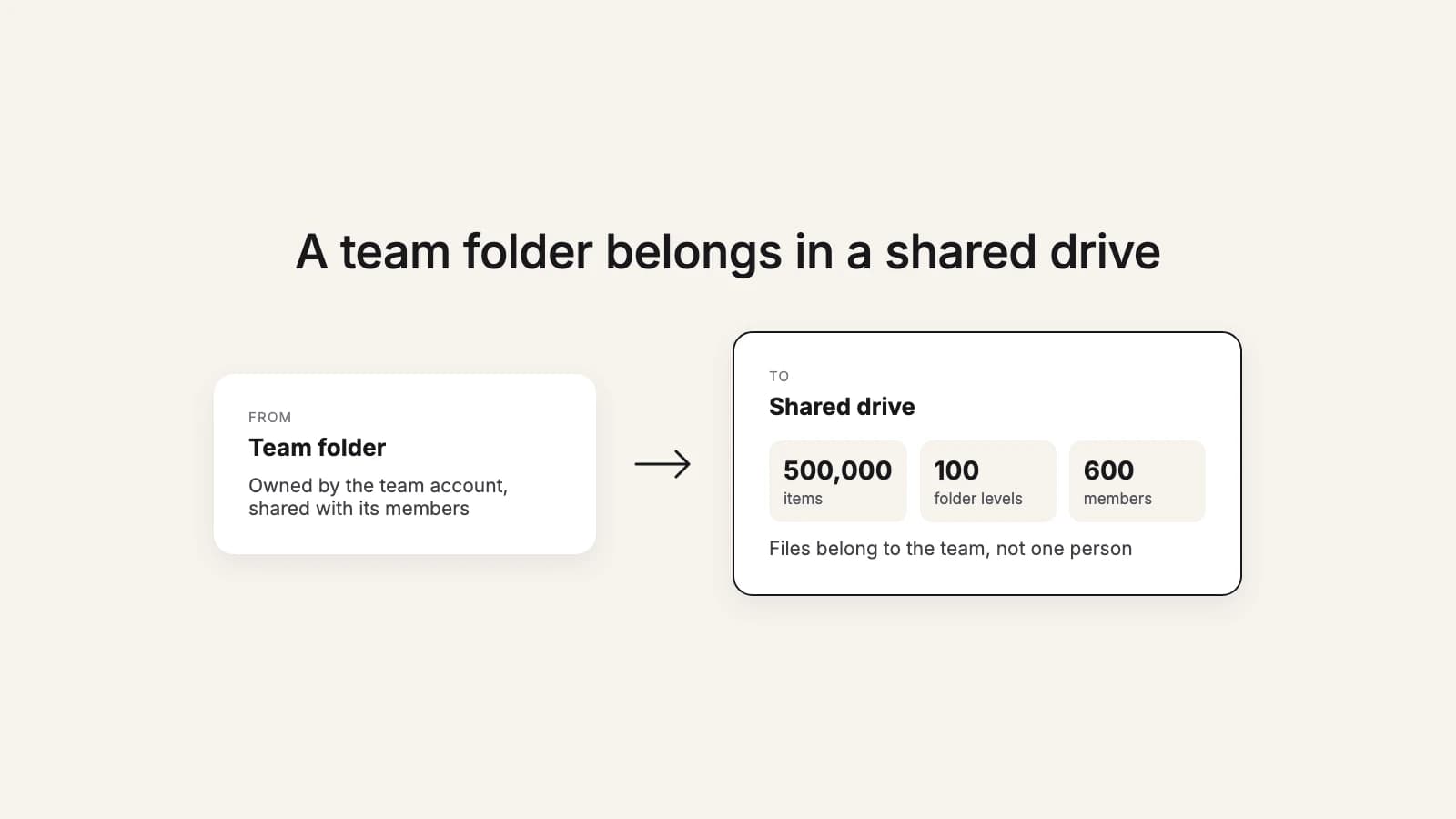
If your team works out of a Dropbox team folder, the natural home on the Google side isn't someone's My Drive. It's a shared drive. Setting it up properly before the files arrive is what makes the switch feel like nothing changed.
Why a shared drive, not My Drive
In My Drive every file has one owner, and when that person leaves, their files go with their account unless someone transfers them. In a shared drive, files belong to the team instead of an individual, and what people added stays when their account is deleted. Everyone who is a member sees the whole shared drive, so there's no re-sharing folder by folder.
Shared drives need a Google Workspace account: they're only available for work or school accounts, on an edition that includes them, and your admin has to allow creating them. Since 2024 that includes Business Starter, with fewer admin controls than the higher editions. A personal Gmail account can't create one.
The limits to check first
From Google's shared drive limits:
- 500,000 items per shared drive, counting files, folders, shortcuts and items in the trash. A very large team folder may need splitting across two shared drives.
- 100 levels of nested folders. Rarely a problem, but deeply nested archives exist.
- 600 members, of which up to 100 can be groups. Adding people through groups keeps you well under it.
- 750 GB of uploads per person per day, the same daily cap as everywhere else in Drive. See how long a move takes.
How roles map
Shared drives have five access levels. When Google's own migration moves a team folder, it maps a Dropbox team editor to Content manager and a viewer to Viewer, which is a sensible default to copy if you set members up yourself.
| Shared drive role | Can |
|---|---|
| Manager | Everything, including adding or removing members and deleting the shared drive |
| Content manager | Upload, edit, move and delete files and folders (the default for new members) |
| Contributor | Add and edit files, but not delete them |
| Commenter | View and comment |
| Viewer | View only |
Set it up before you move
- One shared drive per team folder, named the way the team already talks about it. Split it if it's near 500,000 items.
- Add members with their roles, ideally as a Google group, so people who join later get access by joining the group.
- Make the person running the move a Manager or Content manager, so they can create folders and files in it.
- Check the folder layout in Dropbox and tidy it now. Moving folders around after the move is easy, but doing it once is easier.
- Check which Dropbox setup your team uses. Dropbox teams use either team folders or the team space introduced with the Dropbox for teams update. Either way, the folder has to be visible in the Dropbox account you connect to the migration tool.
Moving the files in
With the desktop apps, copy straight into the shared drive: Google notes that with Drive for desktop you can't move a folder from My Drive into a shared drive. If you're the Workspace admin and the company is on a Dropbox business plan, Google's Data Migration service moves team folders into shared drives and handles up to 150 folders per run, with permissions.
With this2that, you connect Dropbox, tick the team folder, switch the Google Drive side to Shared drives and open the one you created, then press the arrow. The folder lands inside the shared drive with its structure, and the move pauses and resumes around the daily cap on its own. Since the shared drive's members already have access, there's nothing to re-share afterwards.
Try it now
Move a team folder into a shared drive
Pick the folder in Dropbox, open the shared drive, press the arrow. The first 5 GB or 200 files are free.
After the move
- Compare file counts between the Dropbox folder and the shared drive.
- Tell the team the date Dropbox stops being the place to save new work.
- Copy anything changed since with a catch-up pass (30 days with this2that), or a delta run in Google's migration.
- Replace Dropbox links in documents and bookmarks. More in what doesn't move.