

Microsoft 365 Family is moving OneDrive to 2 TB shared: your options
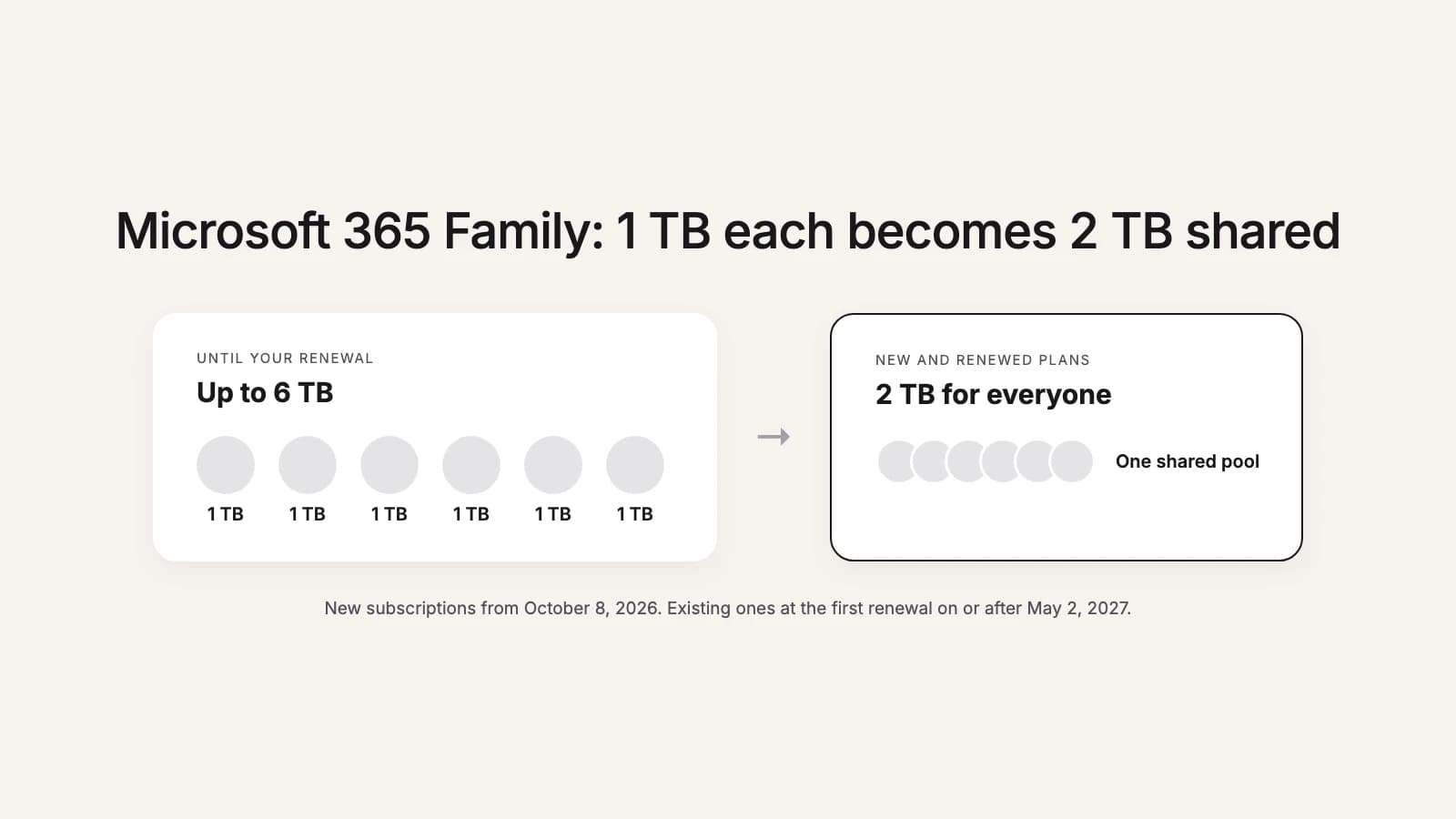
Microsoft is changing how storage works on its family plans. Today a Microsoft 365 Family subscription gives up to six people 1 TB each, so a full household can hold up to 6 TB. Under the new model, Microsoft 365 Family and Premium include 2 TB of shared cloud storage for everyone on the subscription together. For a household that uses OneDrive lightly, nothing much changes. For one that backs up years of phone photos and videos, it can mean being over the limit on renewal day.
Here's what's changing, when, and the options, from free to paid. We make a tool that moves OneDrive to Google Drive and Dropbox, so we've tried to be fair to the options that don't involve us.
What exactly is changing
- Family and Premium: 2 TB shared by every member of the subscription, instead of 1 TB per person. Microsoft 365 Premium is the plan for one to six people that adds Microsoft's AI features for the owner.
- Pro: a plan with 5 TB of shared storage for its members.
- Personal and Basic: still storage for one person: 1 TB on Personal, 100 GB on Basic, dedicated to the account holder.
- Extra storage: you can add storage to a subscription, up to a total of 10 TB, and it goes into the shared pool. Storage any member buys is added to the same pool.
- Privacy stays the same: Microsoft says that while the quota is shared, each person's files stay private unless they share them.
When it happens to you
- New subscriptions: new and upgraded subscriptions include shared storage starting October 8, 2026.
- Existing subscribers: your plan moves to shared storage when it renews on or after May 2, 2027. If your plan renews in, say, August, that's August 2027.
- Upgrading counts: an existing subscriber who upgrades before May 2, 2027 moves to the shared model right away. Downgrading alone doesn't.
Microsoft also says some existing customers might get bonus storage at no extra cost when their subscription renews after the change. Check what your renewal email says before you decide anything.
Are you affected?
Add up what everyone on the subscription stores in OneDrive. Each member can see their own usage in OneDrive's storage settings, so ask them. If the total is well under 2 TB, the change costs you nothing today, though it leaves less room to grow. If it's close to or over 2 TB, you have until your renewal to choose what to do.
What happens if you're over 2 TB
On the change itself, Microsoft says that if your subscription exceeds the limit, you can continue to access your files for up to one year while you manage your storage. Microsoft's general rules for a OneDrive that's over its storage are stricter: the files become read-only, you can't upload, edit or sync new files, an account that stays over for three months can be frozen, and after six months Microsoft might delete it. Microsoft doesn't spell out how the two fit together for shared plans, so don't plan on finding out. Get under the limit, or raise it, before your renewal date.
Your options
| Option | Cost | Good when | Watch out for |
|---|---|---|---|
| Tidy up | Free | Under 2 TB with a little clean-up | Takes time, and everyone has to do their own share |
| Add storage or upgrade | More each year | Keeping everything where it is | Any member's add-on goes into the shared pool; the price is ongoing |
| Split the household | A second subscription | One heavy user who wants their own space | Microsoft 365 Personal is 1 TB for one person |
| Move some or all of it | Free by hand, or a one-time tool | Archives, photos and videos nobody opens daily | Another service to pay for and get used to |
1. Tidy up
Free, and often enough. The big items are usually videos, duplicate photo backups from old phones, and folders someone copied twice, so start with the largest files. The catch: everyone has to clean up their own files, because on a shared plan each person's files stay private. Deleted files can be restored from the recycle bin for 30 days on personal accounts, which is a safety net if someone deletes the wrong thing.
2. Add storage or upgrade
The least work: keep everything where it is and pay for more room, either by adding storage to the subscription (up to 10 TB in total) or by moving up to the Pro plan with 5 TB shared. Prices vary by country, so check them in your Microsoft account. The downside is that it's a cost every year, for files many households rarely open.
3. Split the household
If one person uses most of the space, they can take their own Microsoft 365 Personal subscription, which keeps 1 TB dedicated to one person, and leave the family plan with room to spare. That's a second subscription to pay for, and 1 TB is the cap for that person unless they add storage.
4. Move some or all of it somewhere else
The archive nobody opens every day, such as old photos, finished projects and home videos, doesn't have to live in OneDrive. Moving it to Google Drive or Dropbox frees the shared pool for the files you use. You can do that by hand, through the desktop apps, or cloud to cloud:
- How to move OneDrive to Google Drive, four ways, step by step. Google Drive takes up to 750 GB a day per account.
- How to move OneDrive to Dropbox, including Dropbox's own import, which some individual plans have.
The downside is real: another service to pay for, and a new place to look for things. Moving makes most sense if you already pay for Google or Dropbox storage, or if the archive is big enough that the yearly cost of keeping it in Microsoft 365 adds up. Before you move, check what doesn't move from OneDrive: OneNote notebooks and the Personal Vault need a step of their own.
Where this2that fits
this2that copies a OneDrive straight to Google Drive, cloud to cloud, with read-only access to OneDrive, so nothing there is changed or deleted until you decide. It moves OneDrive to Dropbox the same way. Each person connects their own OneDrive, ticks what to move, and gets a report of every file. The first 5 GB or 200 files are free; after that it's a one-time pack, $99 for 500 GB up to $499 for 7 TB. Moving 2 TB into Google Drive takes about three days because of Google's daily cap (the arithmetic is in how long it takes), so start well before your renewal.
A plan, by renewal date
- Find your renewal date in your Microsoft account.
- Add up everyone's usage.
- Under 2 TB: tidy up a little and carry on.
- Over 2 TB: decide between paying more, splitting the household, or moving the archive, and give yourself a few weeks before the renewal to do it and check the result.
Moving the archive out? this2that copies OneDrive into Google Drive, cloud to cloud. The first 5 GB or 200 files are free.
See how it works→