

How to move OneDrive to Google Drive
Four ways to get your files from OneDrive into Google Drive, from free and manual to fully hands-off, with the steps for each and the limits you only find out about halfway through.
Rather skip the manual steps? this2that moves OneDrive into Google Drive, cloud to cloud. The first 5 GB or 200 files are free.
See how it works→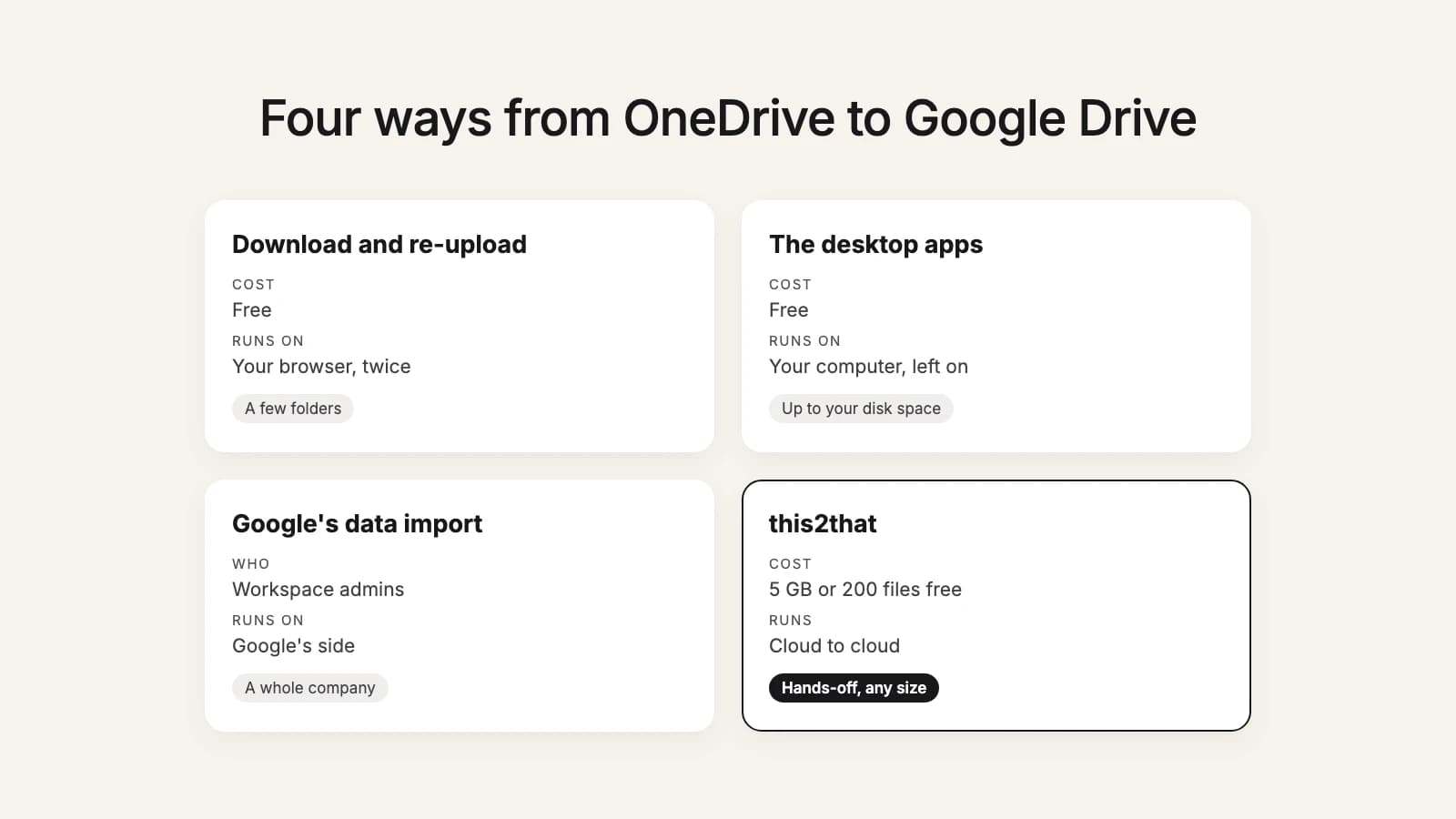
Before you start
- Know the size. Check how much you store in OneDrive, and make sure your Google account or Workspace plan has that much free space.
- Decide where it lands. Personal files go to My Drive. Folders a team works in are usually better in a shared drive, which belongs to the organization rather than to one person.
- Find your OneNote notebooks. A notebook is a package, not a file, so it doesn't move like your other files (see what doesn't move from OneDrive).
- Open the Personal Vault. Files in your Personal Vault sit behind a second sign-in and lock themselves again after a while. Move the ones you want to keep into a normal folder before you start.
- Mind the daily cap. Google Drive accepts 750 GB per account in 24 hours. Anything bigger takes more than a day, whichever method you use.
On Microsoft 365 Family or Premium and wondering why now? Those plans are moving to 2 TB of storage shared by the whole household; our article on the change covers who it affects and when.
Method 1: Download from OneDrive, upload to Google Drive
Free, needs nothing installed, and fine for a few folders.
- On onedrive.com, select a folder and choose Download. OneDrive zips it.
- Unzip the download on your computer.
- On drive.google.com, open the folder where the files should go, choose New, then Folder upload, and pick the unzipped folder.
- Repeat for each folder, then spot-check a few files in Drive.
The limits: Microsoft lists a 10,000-file limit, 250 GB per file, and 10 GB per zip (20 GB in all) when you download several compressed files such as zips or videos for downloading from OneDrive on the web. Every byte crosses your internet connection twice, down and then up, and the browser tab has to stay open while it uploads. Beyond a few gigabytes this gets slow and error-prone.
Method 2: The OneDrive and Google Drive desktop apps
Free, keeps your folders, and copes with more files, if one computer has room for all of it.
- Install the OneDrive app and Google Drive for desktop, and sign in to both.
- OneDrive keeps files online until you open them (Files On-Demand), so right-click the folders you want to move and choose Always keep on this device.
- Wait for OneDrive to finish downloading them.
- Copy the folders from your OneDrive folder into your Google Drive folder. Drive for desktop uploads them in the background.
- Leave the computer on and online until Drive for desktop says everything is up to date.
The limits: you need free disk space for everything you move, and the upload runs at your home or office upload speed. OneNote notebooks show up as small shortcut files that open the notebook on the web, so copying them gives you a link, not the notes. Google notes that shared drives can only be streamed, not mirrored, so copy straight into the shared drive if that's where the files belong.
Method 3: Google's data import tool (Workspace admins)
Generally available since February 2025, Google Workspace can import files from OneDrive for a whole organization, run from the Google Admin console.
- A Google super administrator runs it, and the Microsoft side has to be set up by a Microsoft 365 Global Administrator.
- It copies each person's OneDrive into their My Drive, keeps files in their existing format, turns OneNote notebooks into folders and maps sharing permissions.
- It leaves out the Personal Vault, Favorites and previous file versions: only the latest version of each file is imported.
If you run Google Workspace for a company leaving Microsoft 365, start here: it comes with Workspace and carries permissions. It needs a Microsoft 365 tenant and its Global Administrator, so it isn't an option for a personal OneDrive or a Microsoft 365 Family plan, or for anyone who isn't the admin. Google's older server-based tool, Google Workspace Migrate, no longer gets updates for OneDrive; Google points admins to the data import tool instead.
Try it now
Not the admin, or on a personal plan?
this2that moves your own OneDrive into your Google Drive or a shared drive, cloud to cloud. The first 5 GB or 200 files are free.
Method 4: this2that, cloud to cloud
This is the tool we make, so weigh this section accordingly. It copies from OneDrive straight to Google Drive, cloud to cloud, so nothing passes through your computer and you can close the tab while it runs.
- Open OneDrive to Google Drive, sign in with the Google account the files should go to, and connect OneDrive. We ask Microsoft for read access only, so nothing in your OneDrive can be changed or deleted. Personal accounts connect straight away; a work or school account may need its IT admin to approve this2that first.
- On the left, tick the folders and files you want. On the right, open the Google Drive folder they should land in: My Drive, any folder in it, or a shared drive.
- Press the arrow. The move counts the files, then starts by itself.
- Come back whenever you like. Each move shows its progress, and its report (a CSV) lists every file that moved, was skipped or failed, with the reason.
The first 5 GB or 200 files move free. After that you buy a one-time pack for the size you move, $99 for 500 GB up to $499 for 7 TB, and packs stack for bigger moves. When Google's 750 GB daily cap is reached the move pauses and carries on by itself the next day. Failed files can be retried, and for 30 days after a move finishes a catch-up pass copies only what's new or changed in OneDrive since.
Which method should you use?
- A few folders, a few gigabytes: download and re-upload.
- Up to a few hundred gigabytes, and a computer with room for it: the desktop apps.
- You're the Workspace admin and the company is on Microsoft 365: Google's data import tool.
- A personal or family OneDrive, large, or you want it done without babysitting a computer: a cloud-to-cloud tool such as this2that. How long each size takes is worked out in how long it takes to move OneDrive.
Moving to Dropbox instead? See how to move OneDrive to Dropbox. More tools, including MultCloud and Movebot, are compared in every way to move OneDrive.
After the move
- Compare file counts and spot-check folders you know well.
- Save what you need from your OneNote notebooks.
- Share folders again in Google Drive: sharing in OneDrive doesn't come across with most methods.
- Replace OneDrive links in documents, bookmarks and your website with Google Drive links.
- Keep OneDrive until you're sure nothing is missing, then tidy up or change your Microsoft 365 plan. Our switch-over checklist walks through before, during and after.