

The OneDrive switch-over checklist
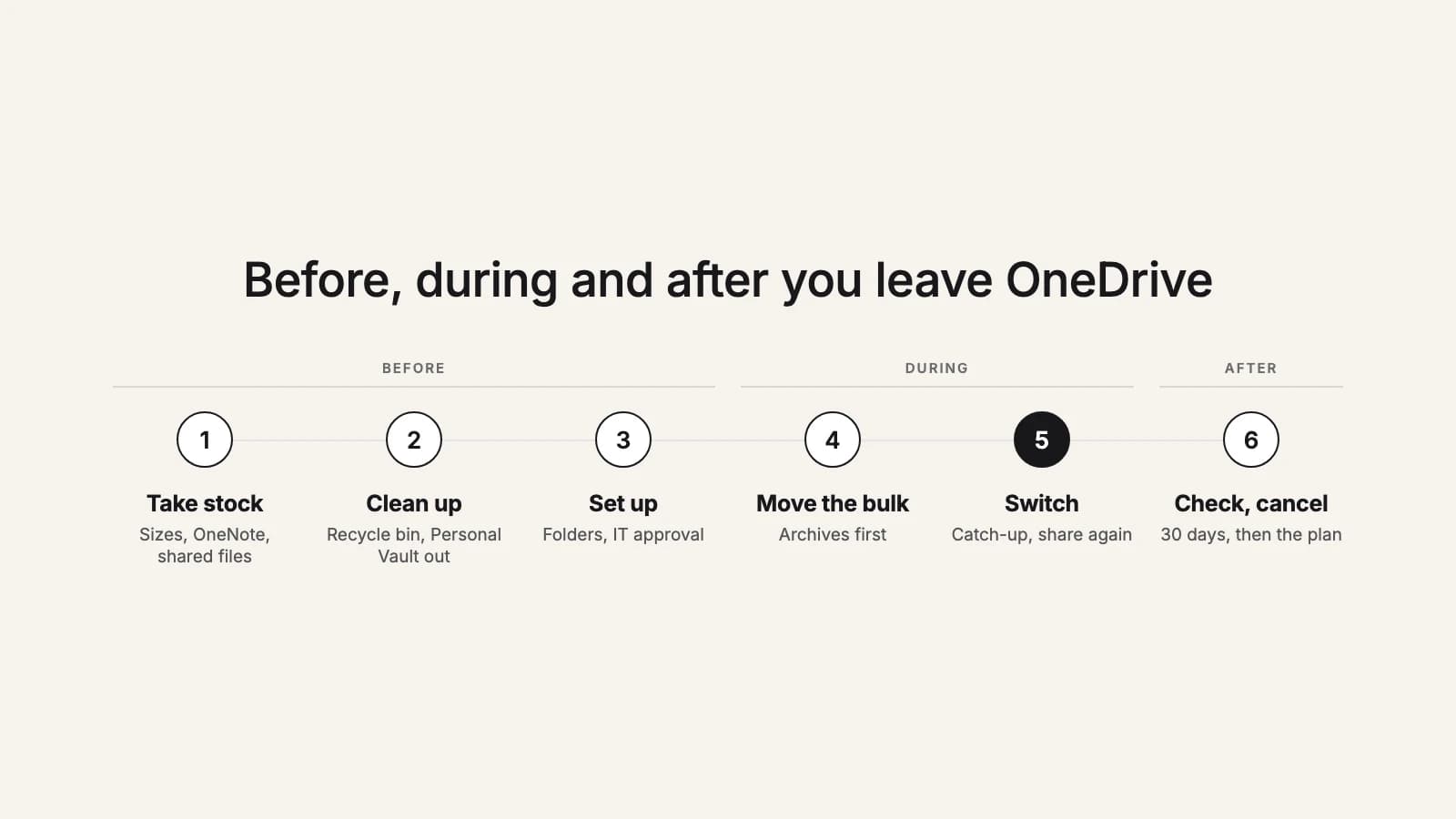
Copying the files is the easy part. What makes a move from OneDrive to Google Drive or Dropbox go smoothly is everything around it: the things in OneDrive that aren't plain files, moving the big stuff early, picking one clear day when the new service becomes the place where work is saved, and not canceling Microsoft 365 a day too soon. Here's that plan, step by step, for a person, a household or a small team.
1. Before: a week out
Take stock
- Note how much you store in OneDrive and check that much is free in Google Drive or Dropbox.
- On Microsoft 365 Family, find your renewal date and ask each member how much they store: everyone moves their own files.
- List the folders that matter, and who you've shared each one with.
- Find your OneNote notebooks and anything in the Personal Vault: both need a step of their own.
- Check your Shared list for files other people own that you still need.
2. Before: six days out
Clean up and unlock
- Delete duplicates and old phone backups nobody needs, so you don't pay to move them.
- Restore anything you still need from the recycle bin, and any older version you need: neither moves.
- Unlock the Personal Vault and move the files you want to keep into a normal folder.
- Save your OneNote notebooks: a downloaded copy on a personal account, or PDFs of the pages you need.
3. Before: five days out
Set up the new home
- Create the destination folders in Google Drive or Dropbox, or a shared drive for a team's files.
- On a work or school account, connect early: your IT admin may need to approve the app first.
- Pick a cutover day and tell everyone who works in your folders: from then on, new work is saved in the new place.
4. During: four to two days out
Move the bulk
- Start with folders that rarely change, such as archives, photos and finished projects.
- Keep working in OneDrive in the meantime; changes get picked up at the end.
- Into Google Drive, allow a day for every 750 GB. Dropbox has no daily cap.
- Read the report of each move, compare file counts, and retry anything that failed.
5. During: cutover day
Switch
- Ask everyone to stop saving to OneDrive, and turn off automatic photo backup in the OneDrive phone app if you use it.
- Run a final catch-up pass to copy what changed since the bulk move.
- Share folders again from the new service and send the new links.
6. After: the next 30 days
Check, then cancel
- Replace OneDrive links in documents, email signatures, bookmarks and your website.
- Spot-check folders people know well, and run another catch-up pass if anyone saved to OneDrive by habit.
- Keep OneDrive until nobody has asked for a missing file for a while, then cancel or downgrade the Microsoft plan.
On Microsoft 365 Family: mind the renewal date
Microsoft 365 Family and Premium are moving from 1 TB per person to 2 TB of storage shared by the whole subscription. New and upgraded subscriptions get shared storage starting October 8, 2026; existing subscriptions move to it when they renew on or after May 2, 2027. If the household is over the limit, Microsoft says you can continue to access your files for up to one year while you manage your storage. Don't plan on using all of it: start the move a few weeks before your renewal, so there's time to check the result. The options, including staying, are in our article on the change.
On a shared plan each person's files stay private, so each member moves their own: with this2that, everyone connects their own OneDrive and picks what to move. One person can't move the whole household in one go.
OneNote notebooks
A notebook in OneDrive is a package, not a file, so no tool moves it as a notebook. On a personal account, OneNote for the web can export a notebook as a zip that you can keep in the new service as a backup; Microsoft notes this doesn't work for work or school notebooks, where the desktop app can export pages as PDF. Or keep using OneNote, which is free with a Microsoft account. this2that shows notebooks greyed out in the picker and lists any inside a folder you move in its report, so none get forgotten.
The Personal Vault: move files out first
The Personal Vault needs a second sign-in to open and locks itself again when you leave it alone for a while (after 20 minutes on the web). Don't count on any tool getting into it. Unlock it, select the files, choose Move to, and put them in a normal folder; move them from there, and once they've arrived, put anything sensitive somewhere private in the new service.
Shared items
Two kinds, two fixes. Files other people shared with you live in their OneDrive, so a move of yours doesn't copy them: this2that shows shortcuts to them as unmovable and lists any inside a moved folder in the report. Download what you need or ask the owner to share it with your new account. Folders you shared move as ordinary folders, but who they're shared with and every link stay in OneDrive, so share them again from Google Drive or Dropbox.
The recycle bin and older versions
Deleted files aren't part of any move. Microsoft keeps them restorable for 30 days on personal accounts and 93 days on work or school accounts, unless an admin changed that, so restore what you still need before you start. The same goes for an older version of a file: every method moves the current version only.
Checking the move with the report
Before anything is copied, a this2that move counts its files, and the report (a CSV) of each move has a row for every file: moved, skipped or failed, with the reason. Check the counts against what you know is in those folders, retry anything that failed, and look up any skipped item. Into Google Drive, a big move pauses at Google's 750 GB daily cap and carries on by itself; into Dropbox, a name that's already taken gets "(1)" added, so nothing already there is overwritten. The arithmetic for different sizes is in how long it takes.
Catch-up for 30 days
You don't have to freeze OneDrive while the bulk moves. For 30 days after a move finishes, "Check for changes" copies only what's new or changed in OneDrive since, so run it on cutover day and again if someone saved to OneDrive by habit. Files deleted in OneDrive stay in the new service, and this2that never changes or deletes anything in OneDrive: it has read-only access.
When to cancel or downgrade Microsoft 365
Last, not first. If you cancel, Microsoft says you keep your subscription benefits until the end of the billing period. After that, a Microsoft account without a subscription comes with 5 GB of cloud storage, and a OneDrive that stays over its storage is strict: the files become read-only, the account can be frozen after three months, and after six months Microsoft might delete it. So:
- Cancel once the move is checked and nobody has asked for a missing file for a while.
- Before the billing period ends, delete what you've moved, or bring what's left under the storage of the plan you're dropping to.
- Still using the Office apps, or only need a little storage? Downgrading, for example from Family to Personal (1 TB for one person) or Basic (100 GB), can be a better step than canceling.
The step-by-step versions are in our guides to Google Drive and Dropbox, and the full list of items that need a step of their own is in what doesn't move.
Rather skip the manual steps? this2that moves OneDrive into Google Drive, cloud to cloud. The first 5 GB or 200 files are free.
See how it works→