

How to export all your Evernote notes
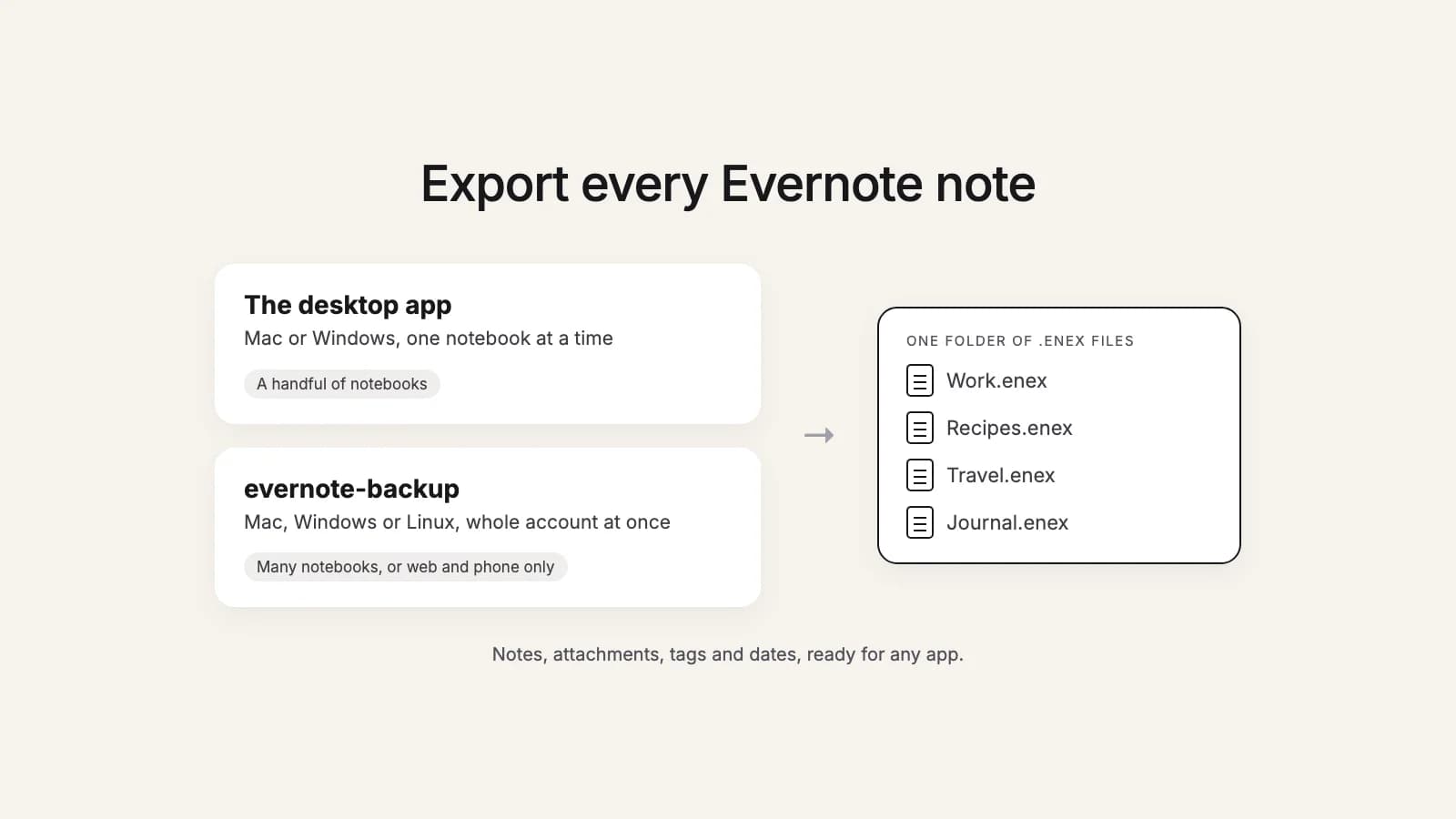
Evernote only exports from its desktop app, and only 100 hand-picked notes at a time. Here is how to get every note out anyway: notebook by notebook on Mac or Windows, or a whole account at once with a free tool that also runs on Linux.
Moving to Obsidian, Apple Notes, UpNote or Markdown? this2that converts your export for the app you chose. The first 50 notes are free.
See how it works →Before you start
- Export as ENEX. An .enex file is Evernote's own export format. It holds your notes with their images, PDFs, tags and dates, and it is what other note apps and converters read.
- Let Evernote sync first. The desktop app exports what it has downloaded. Open it, sign in, and wait until it has finished syncing before you export.
- Make one folder for the files. Evernote names each export after its notebook. Keep those names and put every file in the same folder, so you can add them all at once later.
- Count your notebooks. A handful is a few minutes of clicking in the app. Dozens, or thousands of notes in one notebook you would rather not export by hand, is where the free tool in the second method saves time.
Method 1: Export notebook by notebook from the desktop app
Works on Evernote for Mac and Evernote for Windows. The steps are the same on both.
- Open the Evernote desktop app and sign in. If you don't have it, download it from evernote.com.
- In the sidebar, open Notebooks.
- Right-click the notebook you want and choose Export notebook.
- Choose ENEX as the format. If Evernote offers a list of note details to include, leave them all ticked so tags, dates and the address of web clips come along.
- Save the file into your export folder.
- Repeat for every notebook.
The 100-note limit
You can also select notes in a note list and export them, but Evernote exports at most 100 selected notes at a time. Selecting all of your notes and pressing Export does not get around it. Exporting whole notebooks does: a notebook export has no such cap, which is why exporting notebook by notebook is the way to go.
If you only use Evernote on the web or your phone
Evernote Web and the iPhone, iPad and Android apps have no export. You have two ways out:
- Borrow a computer for an afternoon. Install Evernote on any Mac or Windows computer, sign in, let your notes sync down, and follow Method 1.
- Use evernote-backup. It signs in to your Evernote account itself and runs on Mac, Windows and Linux. See Method 2.
Try it now
Have your .enex files?
this2that turns them into an Obsidian vault, Apple Notes or UpNote imports, or plain Markdown, with attachments, links, tags and dates kept. Your first 50 notes are free.
Method 2: The whole account at once with evernote-backup
evernote-backup is a free, open-source command-line tool by an independent developer, not by Evernote and not by us. It downloads your whole account into a local database, then writes one .enex file per notebook. It is the practical route on Linux, where there is no Evernote app, and for accounts with more notebooks than you want to export by hand.
Install it
Its README lists several ways. The usual ones:
- Mac:
brew install evernote-backup(with Homebrew) - Windows:
winget install -e --id vzhd1701.EvernoteBackup - Linux, or Windows with uv:
uv tool install evernote-backup - Any of the three, without installing anything else: download the ready-made program for your system from the project's releases page on GitHub.
Run it
evernote-backup init-dbsigns you in and creates the database. Evernote's sign-in page opens in your browser. After you allow access, the page asks to open the Evernote app: cancel that, copy the address of the Return to Evernote link, and paste it into the terminal. On a Mac or Windows computer that already has the Evernote app signed in, you can useevernote-backup init-db --oauth-method importinstead.evernote-backup syncdownloads every notebook and note. A big account takes a while. You can stop it and run the same command again: it carries on where it left off.evernote-backup export notes/writes one .enex file per notebook into a folder called notes. Add--include-trashif you want the notes in your trash as well.
One thing to know: the tool's README notes that on Evernote's free plan, which allows one active session at a time, signing it in can sign you out of the Evernote app on another device. If you hit a problem, the project's GitHub page is the place to ask.
Then: add the files to this2that
This is the tool we make, so weigh this section accordingly. this2that does not connect to Evernote: it works from the files you just exported.
- Sign in and choose the app you are moving to: Obsidian, Apple Notes, UpNote or Markdown.
- Add all your .enex files at once.
- Browse your notebooks and notes like folders, and preview how any note will look in the app you chose. Tick whole notebooks or single notes, then press Convert.
- Download the zip. The steps to import it into your app are inside.
The conversion runs in the cloud, so you can close the tab while it works, and your export is deleted after 7 days. Your first 50 notes are free. After that you buy a one-time pack by number of notes: up to 1,000 notes $29, up to 10,000 notes $49 and up to 50,000 notes $99. A note counts once, so converting the same notes again for another app costs nothing.
After the move
- Compare the number of notes in a few notebooks with what Evernote shows.
- Open notes you know well, with photos, PDFs and checklists, and check they look right.
- Keep your Evernote account, and your .enex files, until you are sure nothing is missing.