

How to move Evernote to Apple Notes
Apple Notes can import Evernote's export by itself. Here is how to do it step by step, how to keep your notebooks apart, and when it helps to prepare the files first.
Many notebooks? this2that prepares your Evernote export for Apple Notes: one file per notebook, numbered in import order. The first 50 notes are free.
Evernote to Apple Notes →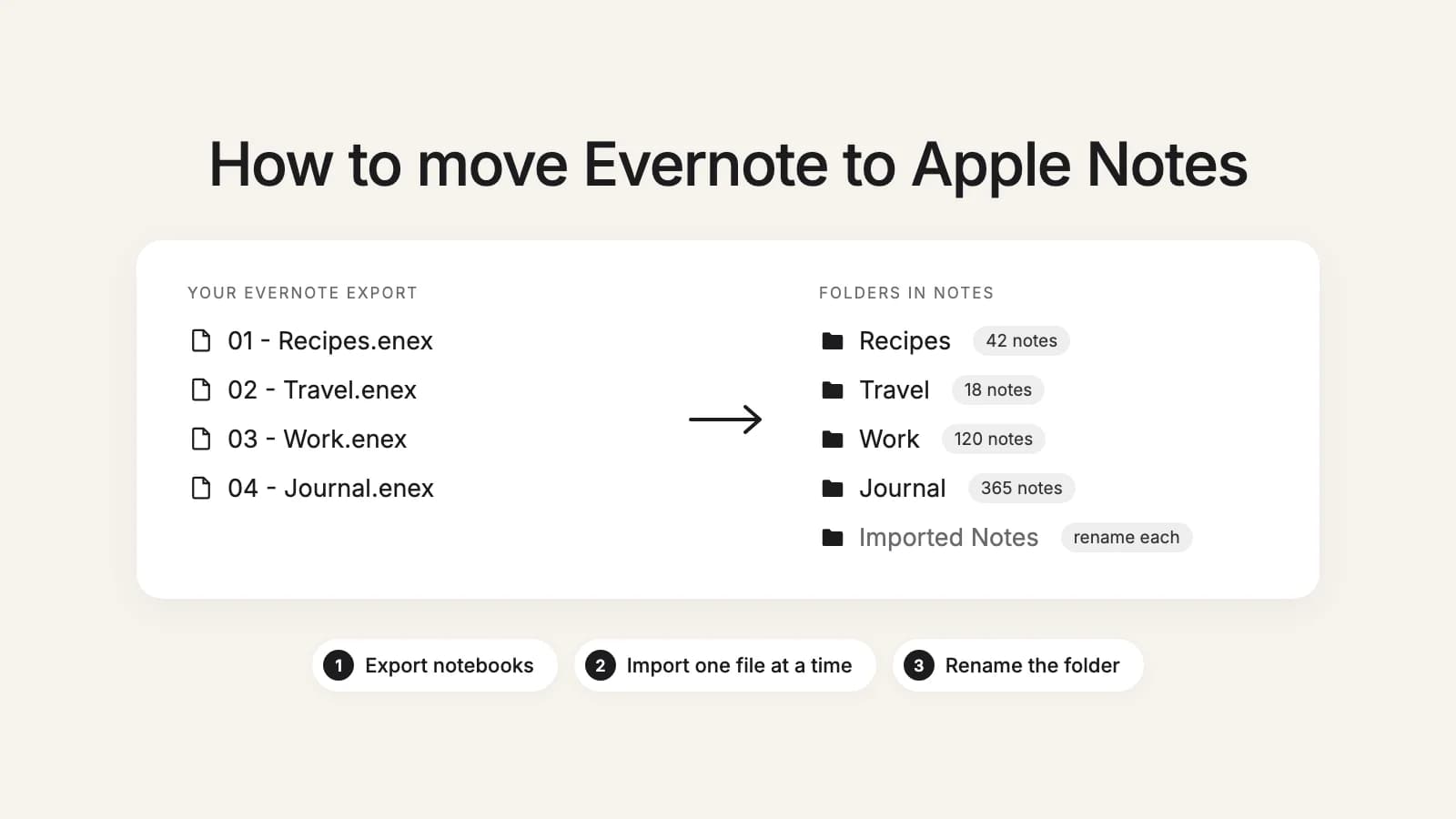
Before you start
- You need the Evernote desktop app. Evernote only exports from its app for Mac and Windows, not from the web or your phone. Install it, sign in, and let it finish syncing.
- Import on a Mac. Apple's import for Evernote files is in Notes on a Mac. Import into iCloud and the notes then sync to your iPhone and iPad.
- On Evernote Free? The free plan is now 50 notes and one notebook, but over the limit you can still view, edit and export your notes.
- Decrypt what you need. Text you encrypted in Evernote stays encrypted in the export, and Notes cannot open it. Decrypt it in Evernote before you export.
Step 1: Export your notebooks from Evernote
- Open the Evernote desktop app and go to Notebooks.
- Right-click a notebook (or open its More actions menu) and choose Export Notebook.
- Choose ENEX as the format and save the file into one folder you keep for the export.
- Repeat for every notebook.
Evernote exports whole notebooks, or up to 100 notes you pick by hand, so go notebook by notebook and keep the file names, which are your notebook names. Our guide to exporting all your Evernote notes covers the 100-note limit, phone and web accounts, and a free tool that exports a whole account at once.
Method 1: Notes' own import on a Mac
Free and built in. These are Apple's steps:
- Open Notes on your Mac.
- In the sidebar, choose a folder in iCloud (so the notes sync to your other devices) or On My Mac.
- Choose File, then Import to Notes.
- Select the .enex file for one notebook.
- Press Import, then Import again to confirm.
- The notes land in a folder called Imported Notes. Rename it to the notebook's name, then import the next file.
What Apple says about it: an .enex file can hold many notes and each one becomes a new note, and an attachment or feature Notes does not support is not imported. If you select a folder of files, Notes may offer to preserve the folder structure; Apple does not say how that treats Evernote files, so try it on a small folder first.
No Mac at hand? Borrow one for the import. Once the notes are in iCloud, they sync to your iPhone and iPad through iCloud.
When it is enough: one or a few notebooks of ordinary notes. Import them one by one, rename each folder, and you are done.
Try it now
Many notebooks, ready to import in order
this2that turns your .enex files into one file per notebook, numbered in import order, with big notebooks split and a report of what to check. Your first 50 notes are free.
Method 2: this2that, then Notes' import
This is the tool we make, so weigh this section accordingly. Notes still does the import; this2that prepares the files so a big account goes in cleanly. It does not connect to Evernote: it works from the .enex files you exported in Step 1.
- Open Evernote to Apple Notes, sign in, and add all your .enex files at once.
- Browse your notebooks and notes like folders and preview how any note will look. Tick whole notebooks or single notes, then press Convert.
- Download the zip and unzip it.
- In Notes on your Mac, choose File, Import to Notes, and pick the file starting with 01.
- Rename the Imported Notes folder to the notebook's name, then import the next file.
What you get:
- One file per notebook, numbered in the order to import them, so each notebook gets its own folder.
- Very large notebooks split into numbered parts, so Notes takes each file in one go.
- Photos, files and checklists inside the notes, and each note's original created and edited dates.
- Web clips saved as whole pages trimmed to the article, without the menus and ads around it.
- A report to read before you import: notes that are only an attachment, encrypted notes, links to notes you did not include, and a reminder to check notes with PDFs.
The conversion runs in the cloud, so you can close the tab while it works, and your export is deleted after 7 days. Your first 50 notes are free. After that you buy a one-time pack by number of notes: up to 1,000 notes $29, up to 10,000 notes $49 and up to 50,000 notes $99. Packs stack, and a note counts once, so converting the same notes again for another app costs nothing.
Which method should you use?
- One or a few notebooks: Notes' own import. It is free and it is enough.
- Dozens of notebooks, big ones, years of web clips: this2that, so every notebook lands in its own folder and you know what to check before you start.
- Not sure yet? Try one notebook each way. this2that's first 50 notes are free, and you can preview any note before converting.
Thinking about UpNote instead? See how to import Evernote into UpNote.
After the move
- Compare the number of notes in each folder with what Evernote shows for that notebook.
- Open notes with photos, PDFs and checklists and check they look right.
- Check that your notes show on your iPhone and iPad, if you imported into iCloud.
- Keep your Evernote account, and your .enex files, until you are sure nothing is missing.