

How to move Evernote to Obsidian
Two ways to get your Evernote notes into an Obsidian vault: Obsidian's own free Importer, and a converter that does every notebook at once. Both start with the same export.
Many notebooks, and links between notes you want working? this2that turns your Evernote export into a ready Obsidian vault. The first 50 notes are free.
Evernote to Obsidian →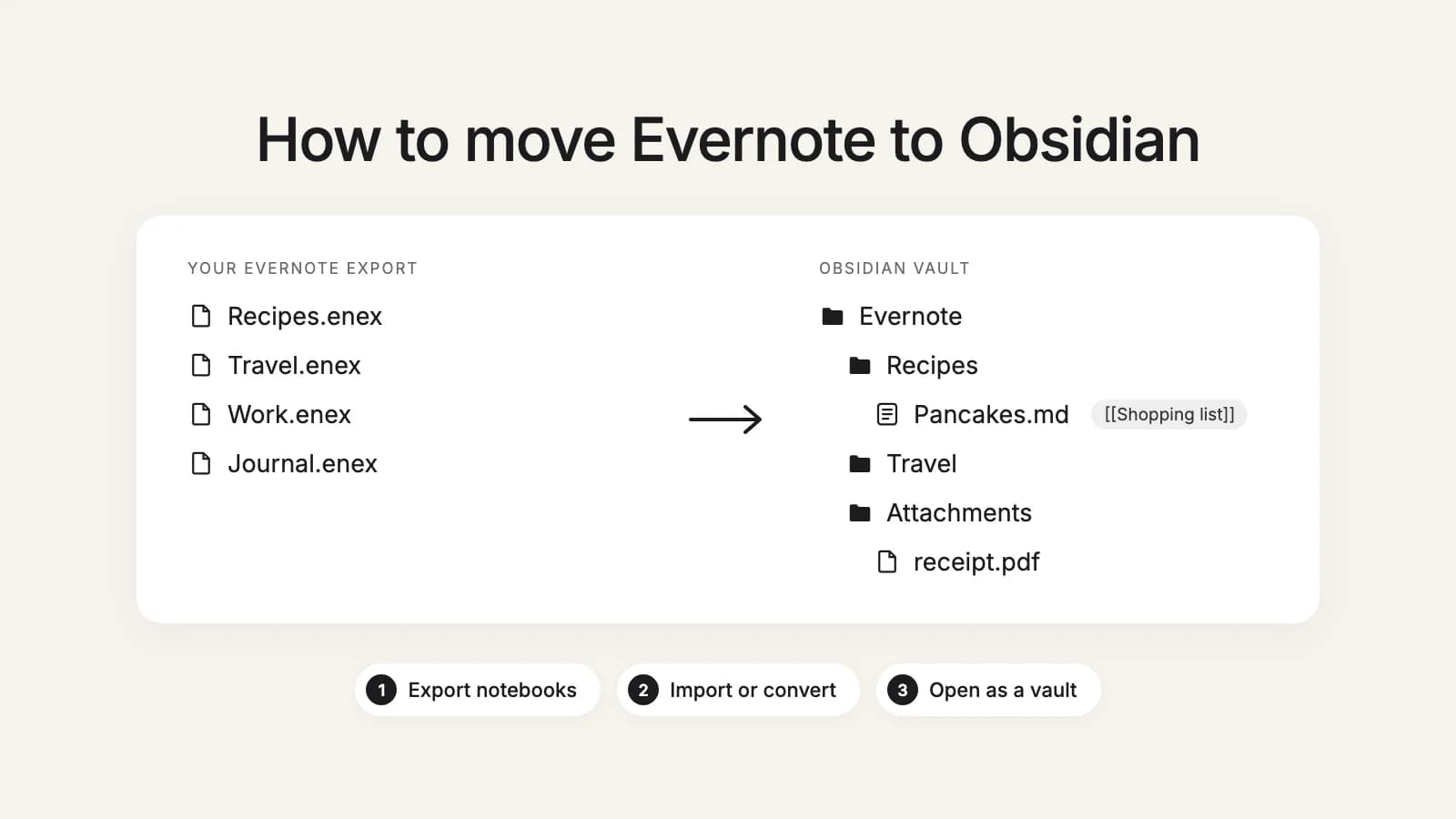
Before you start
- You need the Evernote desktop app. Evernote only exports from its app for Mac and Windows, not from the web or your phone. Install it, sign in, and let it finish syncing.
- On Evernote Free? The free plan is now 50 notes and one notebook, but over the limit you can still view, edit and export your notes. Nothing is locked in.
- Count your notebooks. Both methods below take one .enex file per notebook. Three notebooks is a few minutes. Forty is an afternoon of exporting and checking, which is where the second method saves time.
- Fix nested tags first, if you care about them. Evernote's export does not keep the tag hierarchy, whichever method you use. Rename a child tag to Parent/Child in Evernote before you export and Obsidian will nest it.
Step 1: Export your notebooks from Evernote
- Open the Evernote desktop app and go to Notebooks.
- Right-click a notebook (or open its More actions menu) and choose Export Notebook.
- Choose ENEX as the format and save the file into one folder you keep for the export.
- Repeat for every notebook.
Evernote exports whole notebooks, or up to 100 notes you pick by hand, so go notebook by notebook. Keep the file names Evernote gives: each one is the notebook's name. Our guide to exporting all your Evernote notes covers the 100-note limit, phone and web accounts, and a free tool that exports a whole account at once.
Method 1: Obsidian's Importer plugin
Free, made by the Obsidian team, and a good fit for one or a few notebooks. These are the steps from Obsidian's help page:
- In Obsidian, open Settings, then Community plugins. Install Importer and turn it on.
- Open Importer from the command palette or its icon in the ribbon.
- Under File format, choose Evernote (.enex).
- Select your .enex file.
- Press Import to review the template and preview a few of your notes.
- Press Import again and wait for it to finish.
The limits Obsidian lists: the tag hierarchy is lost (rename tags to Parent/Child before you export), and stacks are missing, because the export only knows single notebooks. To rebuild a stack as a folder, rename the file to Stack@@@Notebook before importing it. Obsidian's page does not say how links between notes or attachments are handled, so open a few notes with links, photos and PDFs and check them before you import the rest.
When it is enough: one or a few notebooks, few links between notes, and time to check the result notebook by notebook.
Try it now
Every notebook at once, as a ready vault
this2that turns all your .enex files into one Obsidian vault: notes named by title, links between notes as [[links]], attachments in one folder. Your first 50 notes are free.
Method 2: this2that, every notebook at once
This is the tool we make, so weigh this section accordingly. It does not connect to Evernote: it works from the .enex files you exported in Step 1.
- Open Evernote to Obsidian, sign in, and add all your .enex files at once.
- Browse your notebooks and notes like folders and preview how any note will look in Obsidian. Tick whole notebooks or single notes, then press Convert.
- Download the zip and unzip it.
- In Obsidian, choose Open folder as vault and pick the Evernote folder. Already have a vault? Drag the Evernote folder into it.
What you get:
- An Evernote folder with one folder per notebook, named after the file you exported.
- Notes named by their titles, unique across the vault. A link from one Evernote note to another becomes a [[link]] Obsidian follows, when you convert the note it points to as well.
- Photos, PDFs and other files in one Attachments folder under their own names, embedded in the note where they were.
- Tags, created and updated dates, and the address of clipped pages as properties at the top of each note. Each file's modified date is the note's own, so sorting by date works.
- Web clips saved as whole pages trimmed to the article, without the menus and ads around it.
- A report in the vault listing what was converted and anything to check, such as links to notes you did not include.
The conversion runs in the cloud, so you can close the tab while it works, and your export is deleted after 7 days. Your first 50 notes are free. After that you buy a one-time pack by number of notes: up to 1,000 notes $29, up to 10,000 notes $49 and up to 50,000 notes $99. Packs stack, and a note counts once, so converting the same notes again for another app costs nothing.
The same limits of the export apply here too: there is no tag hierarchy or stack in an .enex file, so neither method can bring them back by itself.
Which method should you use?
- One or a few notebooks: Obsidian's Importer. It is free and it is enough.
- Many notebooks, links between notes, years of web clips: this2that, which converts every notebook in one go, turns links into [[links]], and tells you what it could not.
- Not sure yet? Try both on one notebook. this2that's first 50 notes are free, and you can preview any note before converting.
Prefer plain files that any editor opens? See how to convert Evernote to Markdown.
After the move
- Compare the number of notes in a few folders with what Evernote shows for those notebooks.
- Open notes you know well, with photos, PDFs, checklists and links, and check they look right.
- Rebuild any tag hierarchy you need with Parent/Child tags, and group notebook folders the way your stacks were.
- Keep your Evernote account, and your .enex files, until you are sure nothing is missing.