
What doesn't move from Evernote, and what to do about it
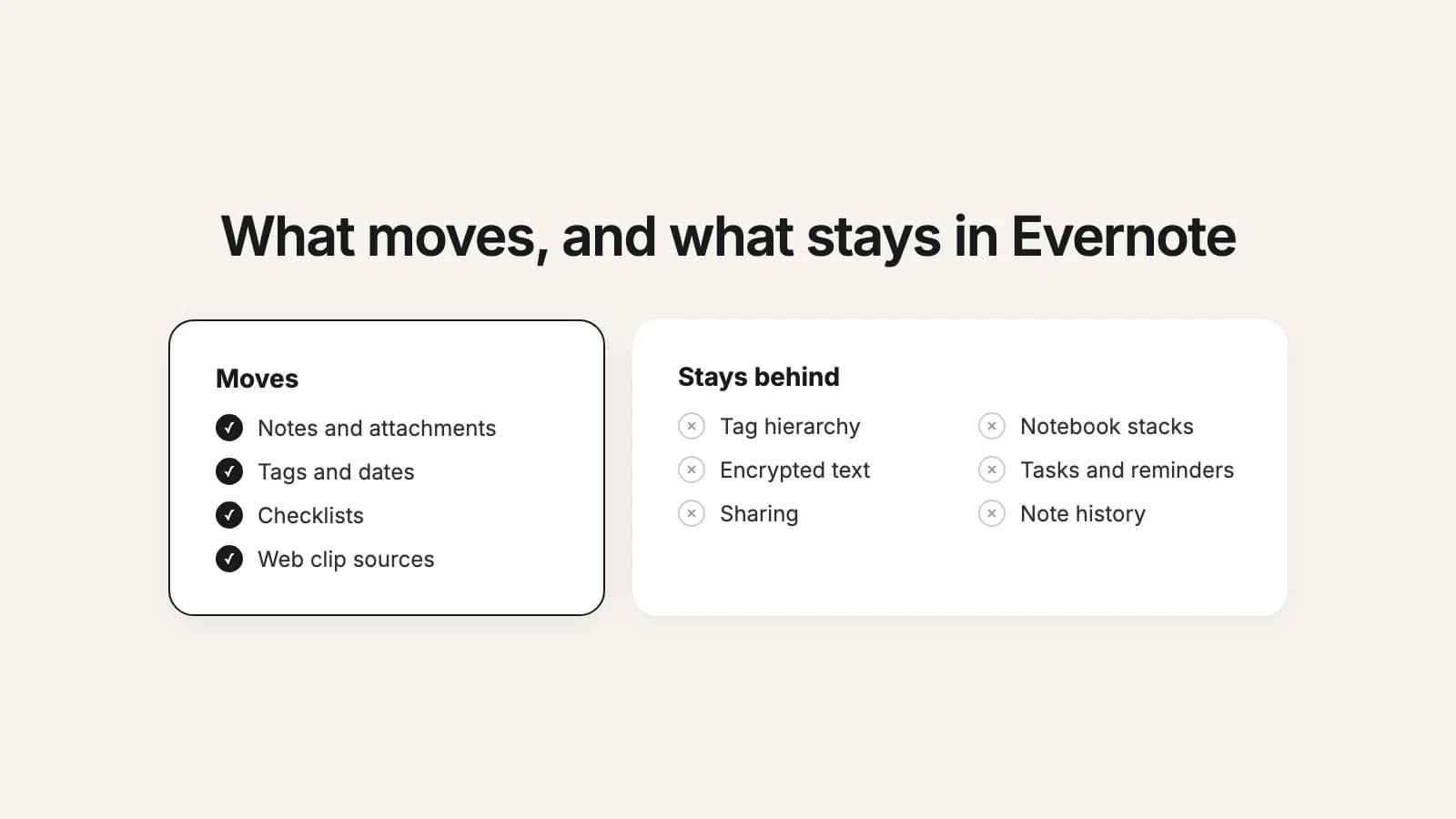
Your notes move. Whatever route you take out of Evernote, the text, photos, PDFs, tags and dates come along, because they're all in the .enex export. A few things aren't in the export at all, and a few only make sense inside Evernote. Knowing the list before you export turns "where did that go?" into a short to-do list, and most of the fixes have to happen while you still have Evernote.
Below, "the app importers" means the importers built into Obsidian, Apple Notes and UpNote, going by their own help pages. Where a page doesn't say, we say so. What we say about this2that comes from how our converter works today.
| What | App importers | this2that | What to do |
|---|---|---|---|
| Notes, attachments, tags, dates | Yes, mostly | Yes | Nothing, beyond opening a few notes with photos and PDFs afterwards. |
| Tag hierarchy | No, tags arrive flat | No, tags arrive flat | Rename child tags to Parent/Child before exporting, for nested tags in Obsidian. |
| Notebook stacks | No | No | Note which notebooks were in which stack, then group them again. |
| Links between notes | Varies; UpNote's still open Evernote | Yes for Obsidian and Markdown; Evernote links in Apple Notes and UpNote | Convert linked notebooks together. |
| Encrypted text | Not readable | Marked as unreadable, or left out and counted | Decrypt it in Evernote before exporting. |
| Checkboxes | Varies | Yes, as checklists | Nothing. |
| Tasks and reminders | Not documented | No | List open tasks and reminders and set them up again. |
| Sharing and shared notebooks | No | No | Share again in the new app; ask owners for notes they shared with you. |
| Note history | Latest version only | Latest version only | Restore or export any older version you need first. |
| Web clip formatting | Varies | Cleaned to the article, source kept | Spot-check clips you rely on. |
| Handwriting and sketches | Varies | As attachments | Export notes as PDF from Evernote if they don't show. |
| Text and highlight colors | Often removed | Removed | If a color means something, add a word or tag first. |
The tag hierarchy
Evernote lets you nest tags, so "Travel" can hold "Chicago" and "New York". Obsidian's help puts it plainly: the Evernote export does not keep the tag hierarchy. Each note keeps its tags, but as a flat list, so "Chicago" arrives without "Travel". That's true for every importer and for us, because the information isn't in the file. UpNote can turn tags into hashtags or notebooks, and replaces special characters in them with a dash.
What to do: if the hierarchy matters, rename each child tag in Evernote before you export, to include its parent: "Travel/Chicago". Obsidian reads a slash as a nested tag, and this2that keeps the slash in Obsidian tags (spaces become dashes), so you get the hierarchy back there. In apps without nested tags, the long name at least keeps the context.
Notebook stacks
Stacks group notebooks in your sidebar, and Evernote says they are only visible to you and cannot be shared. They're not in the export either: Evernote names each .enex file after its notebook, and nothing in it says which stack the notebook sat in. With this2that, each notebook becomes its own top-level folder or notebook in the new app.
What to do: before you export, write down which notebooks sit in which stack (a screenshot of the sidebar is enough). Afterwards, make a folder per stack and drag the notebook folders in; in Obsidian and Markdown that's a minute's work in Finder or Explorer. Obsidian's Importer has its own trick: rename a file to Stack@@@Notebook.enex and it imports into a Stack/Notebook folder.
Links between notes
A link from one Evernote note to another points at Evernote, not at a file, and the export carries no note ids to match it to. UpNote says it cannot convert these links: they stay clickable and keep opening Evernote. Obsidian's and Apple's pages don't say.
this2that matches each link by the title Evernote writes on it. In Obsidian it becomes a [[link]] to that note, and in Markdown a relative link to the file, as long as the note it points to is converted in the same go. A title two notes share is left unlinked rather than pointing at the wrong one, and so is a link someone renamed by hand. In Apple Notes and UpNote files, the link keeps its Evernote address and opens Evernote. The report in your download counts the links that resolved and the ones that didn't.
What to do: convert notebooks that link to each other together. If you use links heavily, Obsidian or Markdown keep them working; in Apple Notes or UpNote, fix the few that matter by hand.
Encrypted text
Evernote can encrypt selected text in a note with a passphrase it does not store anywhere. The text stays encrypted inside the export, and no importer or converter can read it without that passphrase, us included. In Obsidian and Markdown, this2that puts a line where the text was saying it is encrypted and can't be decrypted, with your hint if you set one, so you know which notes to go back to. Apple Notes and UpNote files can't hold it, so there the encrypted part is left out and the report counts the notes it affected.
What to do: find the notes with encrypted text (the report in a this2that download counts them), decrypt each one in Evernote, and export again after that. If the text is sensitive, such as account details, put it in a password manager rather than in plain notes.
Try it now
See what your own export will look like
Add your .enex files and preview any note in Obsidian, Apple Notes, UpNote or Markdown before converting. The report counts encrypted notes and links between notes. Your first 50 notes are free.
Checkboxes, tasks and reminders
Two different things. Checkboxes typed into a note's text are part of the note, and this2that turns them into checklists: real checklists in Apple Notes and UpNote, and - [ ] and - [x] in Obsidian and Markdown, ticked or not as they were. Evernote's Tasks, the feature that lets you add dates, set reminders and assign tasks to others, and reminders set on a note are a different matter: this2that does not carry them into the converted notes, and the app importers' help pages don't say what they do with them.
What to do: before you leave, open your task list and reminders in Evernote, and set up the ones still open in your new app or a to-do app. Finished tasks you only want for the record can be copied into a note as plain text.
Sharing and shared notebooks
Who a notebook or note is shared with, and every share link, live in Evernote. No export carries them. Notes other people share with you belong to them: Evernote shows them in Shared with Me, apart from your own notebooks.
What to do: export the notebooks you own, then share again from the new app. For notes others shared with you, ask the owner for a copy, or copy what you need into a note of your own while you still have access. Tell the people you share with where to find things from now on.
Note history
Evernote keeps older versions of your notes in note history, on Mac, Windows and the web. An export holds each note's current version only, so the history stays behind with every route.
What to do: if you need an older version of a note, open its note history and either restore it or use Export there to save that version as its own .enex file. Do it before you cancel.
Web clips
A clipped page arrives with whatever markup the site had: navigation, ads, odd fonts. Importers bring it across more or less as it is, and UpNote warns that some formatting may appear differently. this2that cleans each clip to the article itself, in the style of a browser's reader view, and puts the address of the page at the top, with the site name when it can find one. In Obsidian the address is also a property, and in Markdown it's in the header. Images saved in the clip come along. Images that were only linked from the original site, and never saved in the note, are left out, since they can't be embedded. If a clip can't be cleaned, the note keeps its original content.
What to do: open a few clips you rely on after the move. For pages where the exact layout matters, a PDF from Evernote's Export as PDF keeps it.
Handwriting and sketches
In an .enex file, anything in a note that isn't text, handwriting and drawings included, is a file attached to the note, and that's how it travels: this2that keeps each one in the note where it was. If Evernote stored it as an image, it shows in the new app like any photo. If it's a file only Evernote knows how to draw, the new app has nothing to show it with.
What to do: after converting, open a few notes with handwriting. For any that don't show, export those notes as PDF from Evernote (up to 100 at a time, or a whole notebook) and keep the PDFs with your notes.
Text and highlight colors
UpNote removes text and highlight colors by default, with an option to keep them that it warns may not read well in light and dark mode. this2that doesn't carry colors either. Bold, italic, underline, strikethrough, headings, lists, tables and links do come across.
What to do: if a color carries meaning, such as red for urgent, add a word or a tag to those notes before you export, so the meaning survives the move.
Catching it all in one pass
Every fix above happens in Evernote, before you export: rename child tags, note your stacks, decrypt, list open tasks, save older versions. The week around leaving Evernote puts them in order. The export itself is in how to export all your Evernote notes, the options for the second step are in every way to leave Evernote, and if you're still choosing an app, where to move from Evernote compares them.