

The week around leaving Evernote: a checklist
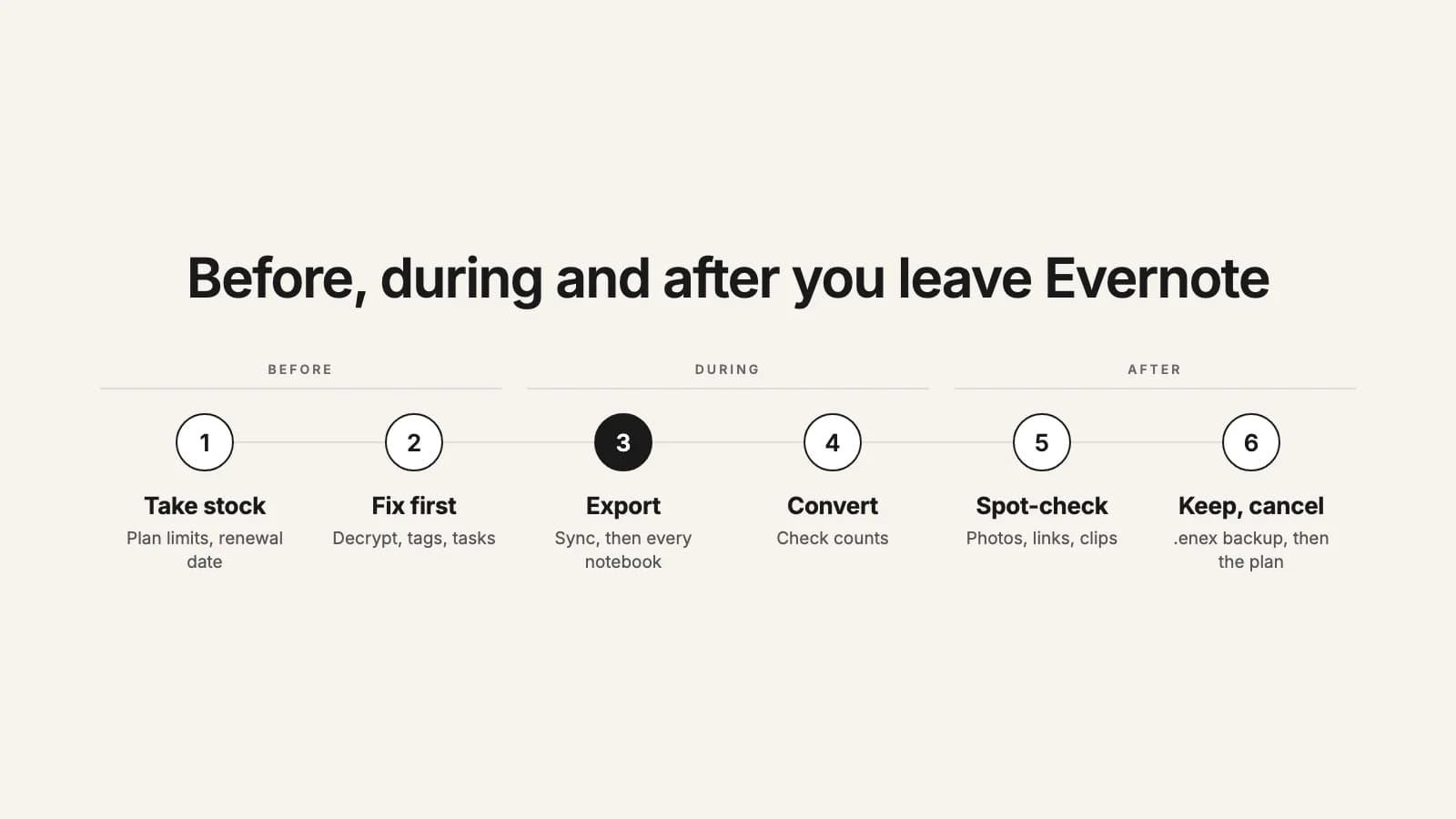
Converting the notes is the quick part. What makes leaving Evernote go smoothly is the week around it: fixing the few things that won't travel while you still have Evernote, getting a complete export, checking that every note arrived, and not canceling a day too soon. Here's that plan, whichever app you're moving to and whichever tool does the converting.
1. Before: a week out
Take stock
- Check your Evernote plan, its note and notebook limits, and the date it renews.
- Count your notebooks, and roughly how many notes each holds.
- Pick the app you're moving to, and try a notebook in it before you commit.
- Find what needs a step of its own: nested tags, stacks, encrypted text, open tasks and reminders, notes others shared with you.
2. Before: a few days out
Fix what won't travel
- Decrypt any encrypted text you want to keep readable.
- Rename child tags to Parent/Child if you want nested tags in Obsidian.
- Screenshot your notebook list, so you know which notebook sat in which stack.
- Write down open tasks and reminders, and save any older note version you need from note history.
- Restore anything from Evernote's trash you still want.
3. During: export day
Sync, then export
- Install Evernote for Mac or Windows, sign in, and wait until it has finished syncing.
- Export every notebook as ENEX into one folder, keeping Evernote's file names.
- Many notebooks, or on Linux? Use evernote-backup to export them all at once.
- From now on, add new notes in your new app, not in Evernote.
4. During: the same day
Check counts, then convert
- Check you have one .enex file per notebook, and compare note counts with Evernote.
- Convert or import, notebooks that link to each other together.
- Read the report or log, and redo any notebook with failed notes.
5. After: the first week
Spot-check
- Open notes you know well: with photos, PDFs, checklists, tables, links and web clips.
- Check the notes flagged for encrypted text, and any with handwriting.
- Rebuild stacks and share again what you used to share.
6. After: the next 30 days
Back up, then cancel
- Keep the .enex files in two places, such as your cloud drive and an external disk.
- Wait until you haven't needed Evernote for a few weeks.
- Cancel before the renewal date. Your account drops to Free, and you can still view and export.
Check your plan's limits first
Evernote's plans now cap how much you can create. Evernote Free allows up to 50 notes and 1 notebook, and Starter up to 1,000 notes and 20 notebooks; Advanced has no cap. If you have more than your plan allows, Evernote says you can still view, edit, share and export your existing notes; you just can't create new ones. So being over the limit doesn't trap your notes, and you don't need to upgrade to leave. The Free plan also syncs one device, so export from the computer you've connected. The full story is in Evernote's 50-note Free plan.
On a paid plan, look up the renewal date in your account settings on Evernote Web. That's your deadline for the whole move, with a week to spare.
Fix what won't travel, while you still have Evernote
A few things aren't in any export, so every fix happens in Evernote, before you export:
- Encrypted text: Evernote doesn't store your passphrase, so nothing can read encrypted text after the move. Decrypt what you want to keep.
- Nested tags: the export doesn't keep the tag hierarchy. Renaming child tags to Parent/Child keeps the context, and gives you nested tags in Obsidian.
- Stacks: not in the export either. A screenshot of the sidebar is enough to rebuild them.
- Tasks and reminders: checkboxes in a note travel; Evernote's Tasks and reminders don't. List the open ones.
- Older versions: note history stays in Evernote. Restore or export any version you need.
The reasons, and what each importer does, are in what doesn't move from Evernote.
Let the desktop app sync, then export every notebook
Evernote exports only from its desktop app for Mac or Windows, not from the web or a phone, and the app exports what it has downloaded. Open it, sign in, and give it time to finish syncing, especially if you mostly use Evernote on your phone. Then export notebook by notebook as ENEX: selecting notes by hand stops at 100 at a time, but a whole notebook has no such cap. Leave the details Evernote offers to include (tags, dates, author) ticked, put every file in one folder, and keep Evernote's file names: importers and converters use them as the notebook names.
With dozens of notebooks, or on Linux, evernote-backup exports the whole account as one .enex file per notebook. Both routes are step by step in how to export all your Evernote notes.
From export day on, write new notes in the new app. Anything added to Evernote after the export isn't in your files.
Try it now
Have your .enex files?
this2that converts them for Obsidian, Apple Notes, UpNote or Markdown, shows the notebooks and notes before you convert, and counts everything in a report. Your first 50 notes are free.
Check counts before and after
Before converting, check you have one file per notebook, and note how many notes Evernote shows for your biggest notebooks. After converting, compare: if you use this2that, the picker lists every notebook and note in your files, and the report in your download gives the number of notebooks, notes and attachments, the encrypted notes, and the links between notes that did and didn't resolve. With an app's own importer, count the notes in the new app, and read its log if it keeps one: UpNote, for one, lists failed notes in its debug log.
A notebook that comes up short usually means the desktop app hadn't finished syncing, or a note was rejected by the new app. Export that notebook again, or look up the note in the log.
Convert, then spot-check
Convert notebooks that link to each other in one go, so links between them can resolve. Then open notes you know well: one with photos, one with a PDF, a checklist, a table, a web clip, a note with links to others, any note flagged for encrypted text, and any with handwriting. Ten minutes of this catches nearly everything. Rebuild your stacks, and share again from the new app what you used to share from Evernote. The steps for each app are in our guides to Obsidian, Apple Notes, UpNote and Markdown.
Keep the .enex files
Your .enex files are a complete copy of your notes at the moment you left, attachments, tags and dates included, in a format many apps can read. Keep them, in two places: say, your cloud drive and an external disk. If you ever switch apps again, or find a note missing a year from now, you start from them instead of from Evernote. With this2that, your upload is deleted after 7 days, so your own copy is the one that lasts.
When to cancel Evernote
Last, not first. When you cancel a paid plan, Evernote says it stays active until the end of the billing cycle, then your account reverts to Evernote Free. You don't lose your notes: over the 50-note limit you can't create new ones, but you can still view, edit, export and delete them. So:
- Cancel once you've spot-checked and haven't needed Evernote for a few weeks.
- Cancel before the renewal date, through Billing in your account settings on Evernote Web, or through Apple or Google Play if you subscribed there.
- If you have several devices connected, Evernote may ask you to disconnect all but one before it cancels.
- Keep the free account for a while as an archive: past the limit you can still read and export, just not add. Closing it for good is a separate step, and there's no hurry.
Still deciding how to do the second step? Every way to leave Evernote compares the importers, the free converters, Notion and us, and where to move from Evernote helps pick the app.