

Every way to leave Evernote (2026)
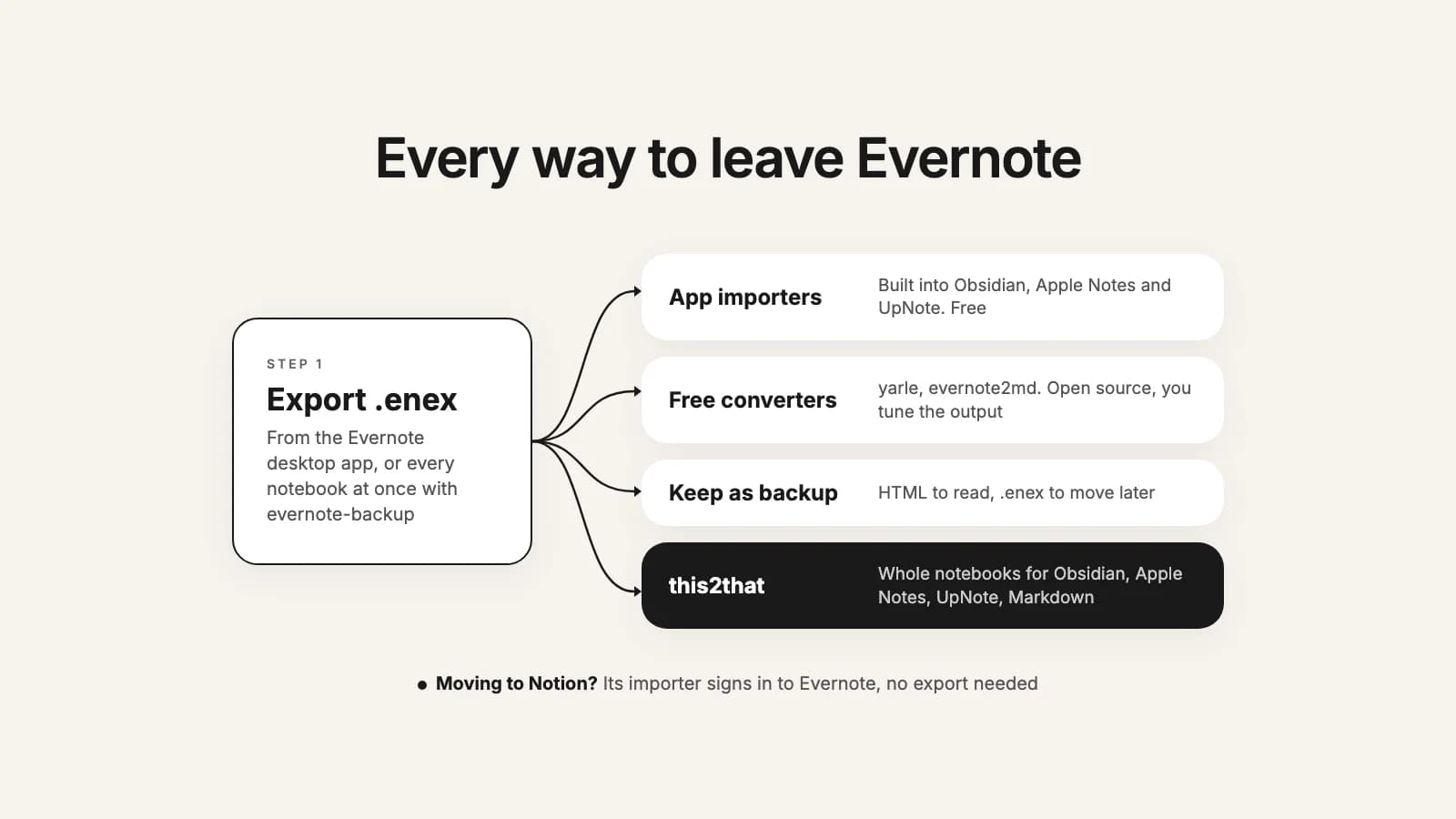
Evernote has no "send to Obsidian" button. Almost every way out starts the same way: you export your notebooks as .enex files from the Evernote desktop app, then something turns those files into notes in your new app. What differs is that second step: the new app's own importer, a free converter, or a service like ours. Notion is the exception, because its importer signs in to Evernote itself. We make one of the options, so here's the whole field, including when another one is the better pick. Details of other tools come from their own help pages, as of October 2026.
| Option | Into | Cost | Needs | Best for |
|---|---|---|---|---|
| Evernote's own export | .enex or HTML files | Free, on every plan | Evernote for Mac or Windows | The first step of almost every route, and your backup |
| Obsidian Importer | Obsidian | Free plugin | Your .enex files | A few notebooks into Obsidian |
| Apple Notes import | Apple Notes | Built in | A Mac and your .enex files | One or two notebooks |
| UpNote import | UpNote | Built in | Your .enex files | Small, tidy notebooks |
| Notion's Evernote importer | Notion | Built in | Your Evernote sign-in, standard edition only | Moving to Notion, up to about 5,000 notes |
| yarle, evernote2md | Markdown, Obsidian, Logseq and more | Free, open source | A desktop app or the command line | People who like to tune the output |
| evernote-backup | .enex files of the whole account | Free, open source | The command line | Exporting every notebook at once, or from Linux |
| this2that | Obsidian, Apple Notes, UpNote, Markdown | First 50 notes free, then from $29 once | Your .enex files | Hundreds or thousands of notes across many notebooks |
Two things apply whichever route you take. First, the export: Evernote exports only from its desktop app for Mac or Windows, not from Evernote Web or the phone apps, and it exports up to 100 notes you pick by hand, or whole notebooks. Free accounts can export too, and an account over the Free plan's limit of 50 notes and 1 notebook can still view, edit and export its notes; more on that in the 50-note Free plan. Second, some things don't travel with any method: the tag hierarchy, notebook stacks, encrypted text, reminders and sharing. The full list, with a fix for each, is in what doesn't move from Evernote. Not sure where to go yet? Start with where to move from Evernote.
1. Evernote's own export
In the desktop app, right-click a notebook, choose Export, and pick ENEX, single-page HTML or multi-page HTML. Evernote lets you set the largest .enex file anywhere from 300 MB to 2 GB, and you can tick which details to include, such as tags, created date and author. HTML is for reading your notes in a browser; ENEX is the format every importer and converter on this page reads, with attachments, tags and dates inside. It's free on every plan. On its own it isn't a move, but the .enex files are also your backup, so keep them whatever you do next. Step by step, including the 100-note limit and what to do if you only use Evernote on the web or your phone: how to export all your Evernote notes.
2. Obsidian's Importer plugin
Obsidian's official Importer plugin reads .enex files and writes Markdown notes into your vault: install it, choose Evernote (.enex), pick a file and import. Free, and fine for a few notebooks. Obsidian's own page names two gaps: the export does not keep the tag hierarchy (rename child tags to ParentTag/ChildTag before you export to get it back), and notebook stacks don't come along unless you rename each file to Stack@@@Notebook. Its page doesn't say how links between notes or encrypted text come across, so open a few notes with both afterwards. Our step-by-step guide: how to move Evernote to Obsidian.
3. Apple Notes' import
On a Mac, Notes imports .enex files with File, Import to Notes. Each note in the file becomes a note, and everything lands in a folder called Imported Notes, in iCloud or On My Mac. Apple says that if an Evernote file has an attachment or feature Notes doesn't support, it won't be imported, and it doesn't list which. The import itself is Mac only; once the notes are in iCloud, they sync to your iPhone and iPad. Free and built in, and good for one or two notebooks. With more, the imports pile into Imported Notes folders that no longer say which notebook they were, so rename each folder before the next import. Our guide: how to move Evernote to Apple Notes.
4. UpNote's import
UpNote imports .enex files on Mac, Windows and Linux. Tick "Use file name as notebook" and each file becomes a notebook named after it; Evernote tags can become hashtags or notebooks. Its help page is upfront about the limits: notes with attachments over 20 MB, or with more than 300,000 characters, may fail to import; if an import would take your account past 20,000 notes or 10 GB of attachments, you can import up to 50 notes at a time; links between notes stay links that open Evernote; and text and highlight colors are removed by default. Good for small, tidy notebooks. With years of notes, a few oversized ones are enough to make you check the debug log afterwards. Our guide: how to move Evernote to UpNote.
5. Notion's Evernote importer
The one route that skips the export. In Notion, open Settings, Import, then Evernote (or type /evernote on a page), sign in to Evernote and pick the notebooks. Each notebook becomes a page in your sidebar, with its notes as items in a list database, or you can send them into a database you already have. Notion lists its limits plainly: it supports the standard edition of Evernote only, not Evernote Teams, Business or China; it's reliable up to about 5,000 notes and larger imports may fail; there's no progress bar; images may not render correctly; created and updated dates can look wrong; and imports run on desktop and web, not mobile. If you're moving to Notion, this is the tool to use. We don't convert for Notion.
Try it now
Moving to Obsidian, Apple Notes, UpNote or Markdown?
Add your .enex files, preview how any note will look, and convert whole notebooks with attachments, tags, dates and links between notes kept. Your first 50 notes are free.
6. Free converters: yarle and evernote2md
Both are open-source (MIT) tools by independent developers that turn .enex files into Markdown. yarle comes as a desktop app for Mac, Windows and Linux or runs from the command line, writes standard Markdown, Obsidian or Logseq notes (and files for Tana and Heptabase), and has templates for how each note looks. It handles links between notes, though its README warns that notes with the same name in different notebooks can produce wrong links. evernote2md is a command-line tool that writes one Markdown file per note, with optional frontmatter, images and files in folders next to them, and file dates set to each note's own; it doesn't sort notes into folders by itself. Both are free and good if you like tuning settings and checking the output yourself. Our guide to plain files: how to move Evernote to Markdown.
7. evernote-backup, for the whole account
evernote-backup is a free, open-source command-line tool that signs in to your account, downloads every notebook, and writes one .enex file per notebook. It replaces the first step, not the second: it gets you the files when you have dozens of notebooks, when you're on Linux, or when you'd rather not click Export notebook forty times. Pair it with any importer above, or with us. How to run it is in our export guide.
8. this2that
Ours. We don't connect to your Evernote account: you export your notebooks, add all the .enex files at once, browse the notebooks and notes like folders, preview how any note will look in the app you chose, tick what you want and press Convert. The conversion runs in the cloud, so you can close the tab, and you download a zip with the import steps inside. What you get depends on the app:
- Obsidian: a ready vault, notebooks as folders, notes named by their titles, links between notes as [[links]], photos and PDFs embedded, tags, dates and the address of web clips as properties.
- Apple Notes: one file per notebook, numbered in import order so you can rename each Imported Notes folder as you go, with photos, files, checklists and the original dates inside, and large notebooks split so Notes takes each file in one go.
- UpNote: one file per notebook, named so UpNote names the notebook; files over UpNote's 20 MB limit set aside with a line in the note saying where they are, and very long notes split into parts it accepts.
- Markdown: plain .md files, notebooks as folders, attachments alongside, and title, dates, notebook, tags and source address in each file's header.
Encrypted text is marked as unreadable rather than silently dropped, web clips are cleaned to the article with their source kept, and the report in your download counts links that resolved and any that didn't. Notes you exported one at a time, rather than as a notebook, land together in one notebook called Notes. Your first 50 notes are free. After that you buy a one-time pack by number of notes: up to 1,000 notes $29, up to 10,000 notes $49 and up to 50,000 notes $99. Packs stack, and a note counts once, so converting the same notes again for another app is free. Your export is deleted after 7 days, and nothing in Evernote is touched.
What we can't do: bring back what the export doesn't contain (the tag hierarchy, stacks, note history), carry Evernote's Tasks and reminders, or convert for any app other than the four above.
When not to use us
- You're moving to Notion: use Notion's own importer. For any other app we don't convert for, try that app's importer first.
- One small notebook: the importer built into Obsidian, Apple Notes or UpNote is free and probably enough. So are our first 50 notes, if you want to compare.
- You're happy in a terminal and like to tune output: yarle or evernote2md, at no cost.
- You only want a backup, not a move: Evernote's own export or evernote-backup, and keep the .enex files somewhere safe.
For everyone else with hundreds or thousands of notes across many notebooks, who would rather not check every note by hand, that's what this2that is for. Whichever you pick, the week around leaving Evernote puts the steps in order, from checking your plan to when to cancel.