
Leaving Evernote: Obsidian, Apple Notes, UpNote or Markdown?
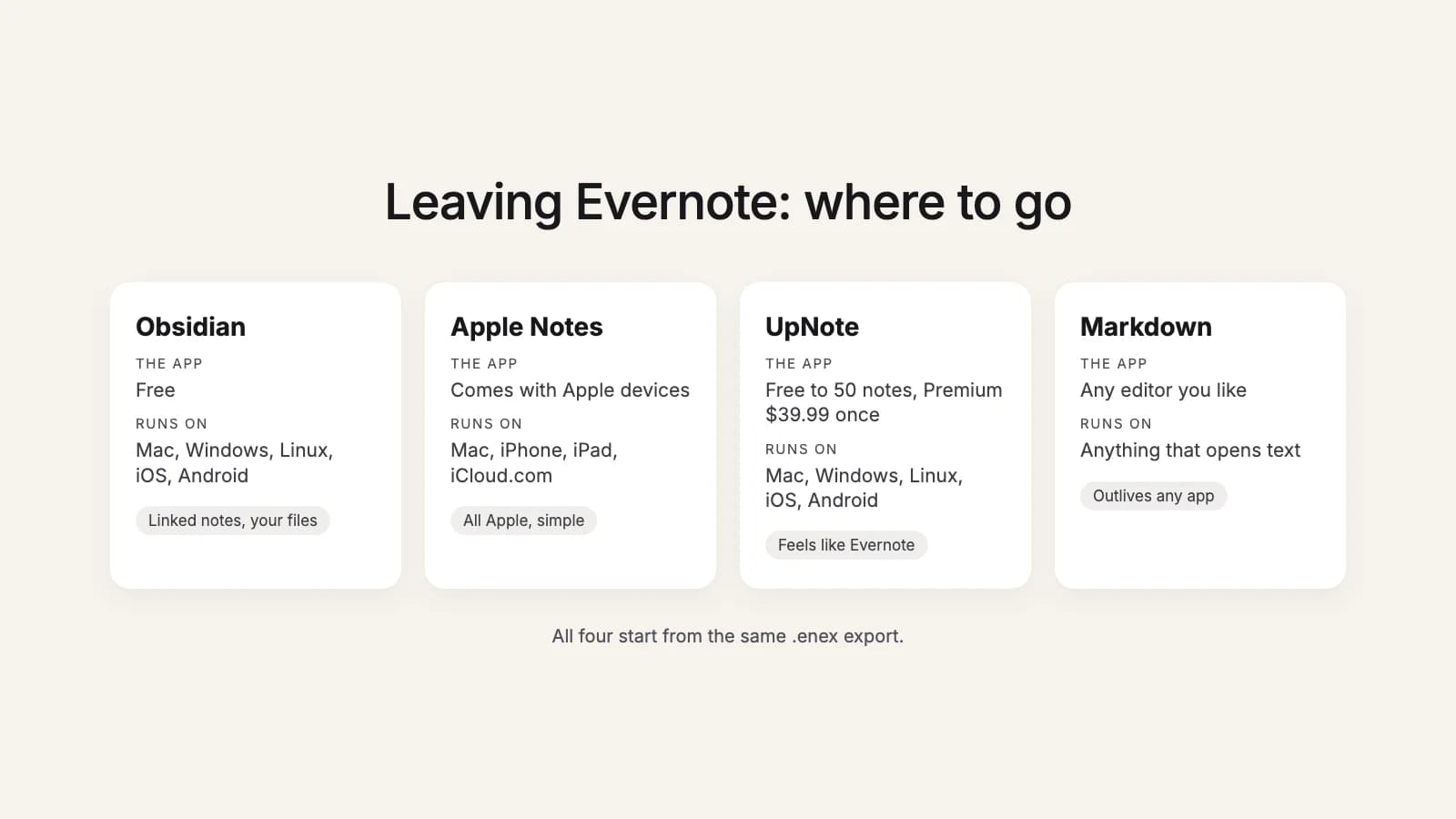
Once you've decided to leave Evernote, the harder question is where to go. Most people end up in one of four places: Obsidian, Apple Notes, UpNote, or plain Markdown files. They're very different apps, and the right one depends less on features than on which devices you use and how much setup you're willing to do.
This is a comparison for someone choosing. Every outside fact links to the app's own page. We make a tool that converts Evernote exports for all four, so we don't mind which one you pick, and we've kept what our tool does in its own section at the end.
The short version
- Everything you own is Apple, and you want simple: Apple Notes.
- You want Evernote without Evernote, on any device: UpNote.
- You think in linked notes, or want your notes as files you own: Obsidian.
- You want an archive that no app can lock up: Markdown.
Side by side
| Compared | Obsidian | Apple Notes | UpNote | Markdown |
|---|---|---|---|---|
| The app costs | Free | Comes with Apple devices | Free up to 50 notes, then $1.99 a month or $39.99 once | Free editors, or any paid one |
| Runs on | Mac, Windows, Linux, iOS, Android | Mac, iPhone, iPad, and iCloud.com in a browser | Mac, Windows, Linux, iOS, Android | Anything with a text editor |
| Sync | Obsidian Sync (paid), or iCloud, Git and others yourself | iCloud | Built in, with an UpNote account | Whatever syncs your files |
| Notebooks become | Folders | Folders, one import at a time | Notebooks | Folders |
| Tags become | Tags (hierarchy lost) | Not documented by Apple | Hashtags or notebooks, your choice | Text in each file's header |
| Links between notes | Can become [[links]] | Not documented by Apple | Stay Evernote links | Can become relative links |
| Best for | Linked notes, plain files, plugins | All-Apple households who want simple | Something that feels like Evernote | Files that outlive any app |
Prices and platforms from each app's own website, checked October 18, 2026. Import behaviour is what each app's own importer does, as its documentation describes it.
First, whichever you pick: the export
All four start from the same place. Evernote only exports from its desktop app for Mac and Windows, as ENEX or HTML, either whole notebooks or up to 100 notes you pick by hand. ENEX is the one every app below reads. Our guide on how to export all your Evernote notes covers the desktop app, the web-and-phone case, and a free tool that exports a whole account at once.
Obsidian
Obsidian keeps your notes as Markdown files in a folder on your own computer, called a vault. It's free, at home or at work, with no sign-up, and runs on Mac, Windows, Linux, iOS and Android.
- Sync: Obsidian Sync is the paid option, $4 a month billed yearly or $5 month to month. Because a vault is just a folder, you can also sync it yourself with iCloud, Syncthing or Git, with some limits on iPhone.
- Importing: Obsidian's free Importer plugin reads .enex files. Each notebook becomes a folder. Evernote's export doesn't include notebook stacks or the tag hierarchy, so nested tags arrive flat and stacks have to be rebuilt by hand.
- Good at: links between notes, search across thousands of files, and plugins for almost anything.
- Less good at: being simple on day one. It has more settings than the others, and sync takes a decision.
Fits: people who want their notes as files they own, think in linked ideas, and don't mind setting things up once. The Evernote to Obsidian guide has the steps.
Apple Notes
Apple Notes is already on your Mac, iPhone and iPad, and syncs through iCloud. On a Windows computer you can use it in a browser at iCloud.com, though Apple says attachments can't be added there, only viewed.
- Importing: Notes on a Mac imports .enex files with File, Import to Notes. Each import lands in a folder called Imported Notes, and Apple says any attachment or feature Notes doesn't support isn't imported. With several notebooks, import them one at a time and rename the folder after each, or they all end up in folders with the same name.
- Good at: being there already, with no account, app or subscription to add, and checklists, photos and scans that feel at home on an iPhone.
- Less good at: anything outside Apple, and tags, which Apple's import page doesn't mention.
Fits: people whose devices are all Apple and who used Evernote for everyday notes, lists and saved pages. The Evernote to Apple Notes guide has the steps.
UpNote
UpNote looks and works the most like Evernote did: notebooks, tags, a sidebar, and notes that sync automatically across your devices. It runs on Mac, Windows, Linux, iOS and Android. The free version holds 50 notes; Premium removes the limit for $1.99 a month or $39.99 once, according to its website (prices can vary by region).
- Importing: UpNote imports .enex files itself. Turn on Use file name as notebook and each file becomes a notebook. Tags can become hashtags or notebooks. Notes with an attachment over 20 MB, or more than 300,000 characters, may fail; links between notes stay Evernote links that open Evernote; text and highlight colors are removed unless you keep them.
- Good at: feeling familiar from the first minute, on every platform, for a small one-time price.
- Less good at: links between notes, and very large notes and attachments.
Fits: people who liked Evernote and want the same shape of app without the subscription, especially on a mix of Windows and phones. The Evernote to UpNote guide has the steps.
Try it now
Picked an app?
this2that turns your .enex export into an Obsidian vault, Apple Notes or UpNote imports, or plain Markdown. Your first 50 notes are free, and converting the same notes for another app costs nothing.
Markdown
Markdown isn't an app. It's plain text with a little formatting, saved as .md files that open in any text editor, and in many note apps that read Markdown. Your notes become files in folders, and you choose the editor, the sync and the backup.
- Sync: whatever already syncs your files, such as iCloud Drive, Google Drive, Dropbox or Git.
- Importing: there's no importer to run, only a converter from .enex to .md. Free command-line converters exist; how well they handle attachments, tags and web clip addresses varies.
- Good at: lasting. Plain text will open in ten years, whatever happens to any app.
- Less good at: being an app. Checklists are text, photos sit next to the notes, and there's no notebook sidebar unless your editor adds one.
Fits: an archive you want to keep but rarely edit, people who already write in a Markdown editor, and anyone who wants a copy outside every app as a backup. If you plan to use Obsidian, pick Obsidian instead, since a vault is Markdown already. The Evernote to Markdown guide has the steps.
Attachments and web clips
Two things decide how a move feels afterwards. Attachments: every app above keeps photos and PDFs, but where they go differs. Obsidian and Markdown store them as separate files next to your notes; Apple Notes and UpNote keep them inside the note. Web clips: a clipped page arrives as an ordinary note, and whether the address of the original page survives depends on the importer. Before you commit, read what doesn't move from Evernote, which covers these and the other gaps.
How this2that handles each one
This is the tool we make, so weigh this section accordingly. You add your .enex files, pick the app, and download files ready for it. It doesn't connect to your Evernote account.
- Obsidian: a ready vault, a folder per notebook, notes named by title, links between converted notes as [[links]], photos and PDFs in one Attachments folder and embedded in the note, and tags, dates and web clip addresses as properties.
- Apple Notes: one .enex file per notebook, numbered in the order to import them, so you can rename each Imported Notes folder before the next. Photos, files, checklists and original dates come along.
- UpNote: one .enex file per notebook, named after it, so Use file name as notebook names each notebook right. Files over UpNote's 20 MB limit are set aside with a line in the note, and very long notes are split into parts.
- Markdown: a folder per notebook, notes named by title, attachments in an attachments folder inside each notebook, links between converted notes as relative links, and tags, dates and source address in YAML frontmatter at the top of each file.
Your first 50 notes are free. After that it's a one-time pack by number of notes: up to 1,000 notes $29, up to 10,000 notes $49 and up to 50,000 notes $99, and packs stack. A note counts once, so if you try Apple Notes and then change your mind, converting the same notes for Obsidian costs nothing. Your upload is deleted after 7 days.
If you still can't decide
- Export everything from Evernote first. That part is the same for all four.
- Try your top choice with one notebook you know well.
- Check photos, PDFs, checklists and a few web clips in it.
- Keep Evernote, and your .enex files, until you're sure. The leaving Evernote checklist has the rest.
On the free plan and over the limit? Evernote Free's 50-note cap explains what still works while you decide. For every route out, free and paid, see every way to leave Evernote.